If you film yourself talking and want to post short clips, pick Descript if you want to edit your video by editing its transcript, and you also make longer videos or podcasts. Pick VEED if you want a browser editor with a timeline, templates, subtitle styles and translation, and you want watermark-free exports at the lower price.
Both tools have a free plan, and both put a watermark on it. Both also do more than talking-head shorts, so you'll use only part of either one. The rest of this post shows where each tool fits, with prices as of October 2026.
We make Sycamore, so we'll say that up front. We cover it at the end as a third option, because it's built only for talking-head shorts and some readers want that.
VEED vs Descript at a glance
| VEED | Descript | |
|---|---|---|
| Paid plans (billed yearly) | Creator $8 per user a month ($96 a year), Pro $19 per user a month ($228 a year), plus Studio and Enterprise | Hobbyist $16 a month ($192 a year), Creator $24 a month ($288 a year), Business $50 a month ($600 a year) |
| Monthly billing | Higher per month than yearly billing; check the pricing page for the figure | Hobbyist $24, Creator $35, Business $65 a month |
| Free plan | Yes, with a watermark and 720p exports | Yes, 60 media minutes a month, 720p exports with a watermark |
| First plan with no watermark | Creator | Hobbyist (1080p export) |
| Highest export listed | 4K on Pro | 4K on Creator |
| How you edit | A browser editor with a timeline and a left menu of tools | You edit the video by editing its transcript |
| Captions | Auto-subtitles with animated presets; unlimited on Pro, 120 hours a year on Creator | One-click subtitles; transcription in 30+ languages |
| Clips from longer videos | AI clip generator | Create Clips, included on Hobbyist and up |
| Does it well | Browser editing, templates, subtitle styles, translation to 50+ languages on Pro | Removing filler words and retakes from the transcript, long-form and podcast editing |
| Missing or limited for you | Free plan has a watermark; 4K and unlimited auto-subtitles need Pro; translation uses AI credits | Free plan has a watermark; a lot of the feature set is for podcasts and long-form work |
| Best for | Creators who want a browser editor, templates and translations at a lower price | Creators who think in text, or who also make podcasts and long videos |
The prices come from each tool's pricing page, checked on October 22, 2026. Monthly prices are higher than the yearly ones for both tools. VEED's pricing page showed different Creator and Pro figures on an earlier check, so confirm the current price before you pay.
VEED

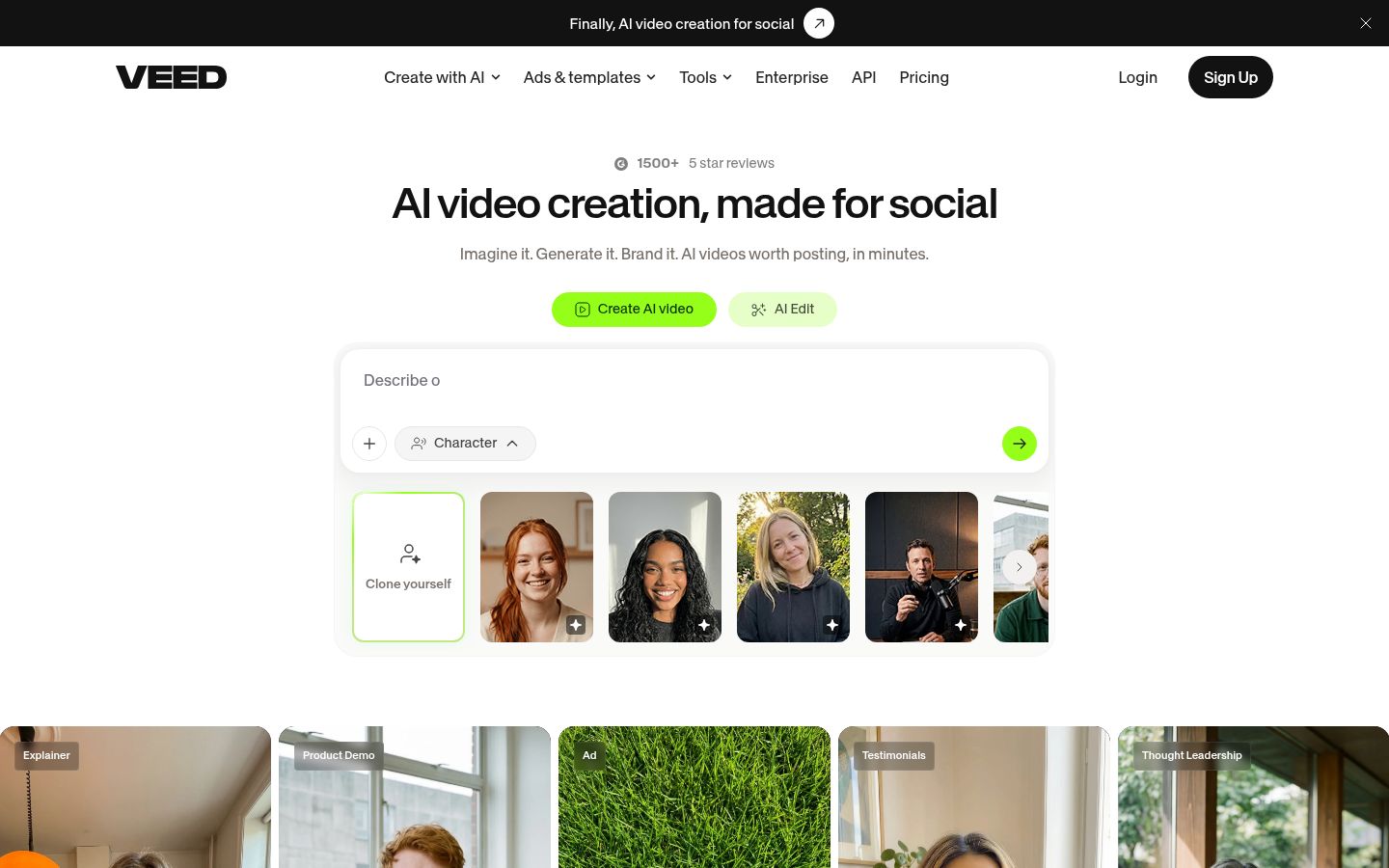
VEED is a browser-based video editor. Its homepage leads with AI video creation, but the editor is the part most talking-head creators use. You upload a file, open the Subtitles tab from the left menu, pick a spoken language and click Auto-subtitle. VEED's help center describes that flow step by step. VEED's auto-subtitle help article covers it.
The subtitles themselves are a strength. VEED's dynamic subtitles come with animated presets such as "Glide" and "Pulse", and you can change the font, colors and style, and highlight specific words. VEED's dynamic subtitles help article says dynamic subtitles are unlimited on every plan, as long as the project already has subtitles.
VEED also has templates, a compressor, a background remover, an AI clip generator and a set of AI avatar and voice tools. Many of those tools have nothing to do with talking-head shorts, but they're there if you need them.
The limits that matter for this comparison:
- The free plan has a watermark. Third-party reviews describe the free plan as 720p exports with a VEED watermark, and that's the plan to check before you start. Predis's VEED review covers it.
- 4K and unlimited auto-subtitles need Pro. VEED's pricing page lists 4K export and unlimited auto-subtitles on Pro, and Creator includes 120 hours of subtitles a year.
- Detect Speakers is Pro only. VEED's help article says the option that separates captions by speaker needs Pro.
- Translation uses AI credits. Subtitle translation draws on AI credits, according to the same help article.
Descript

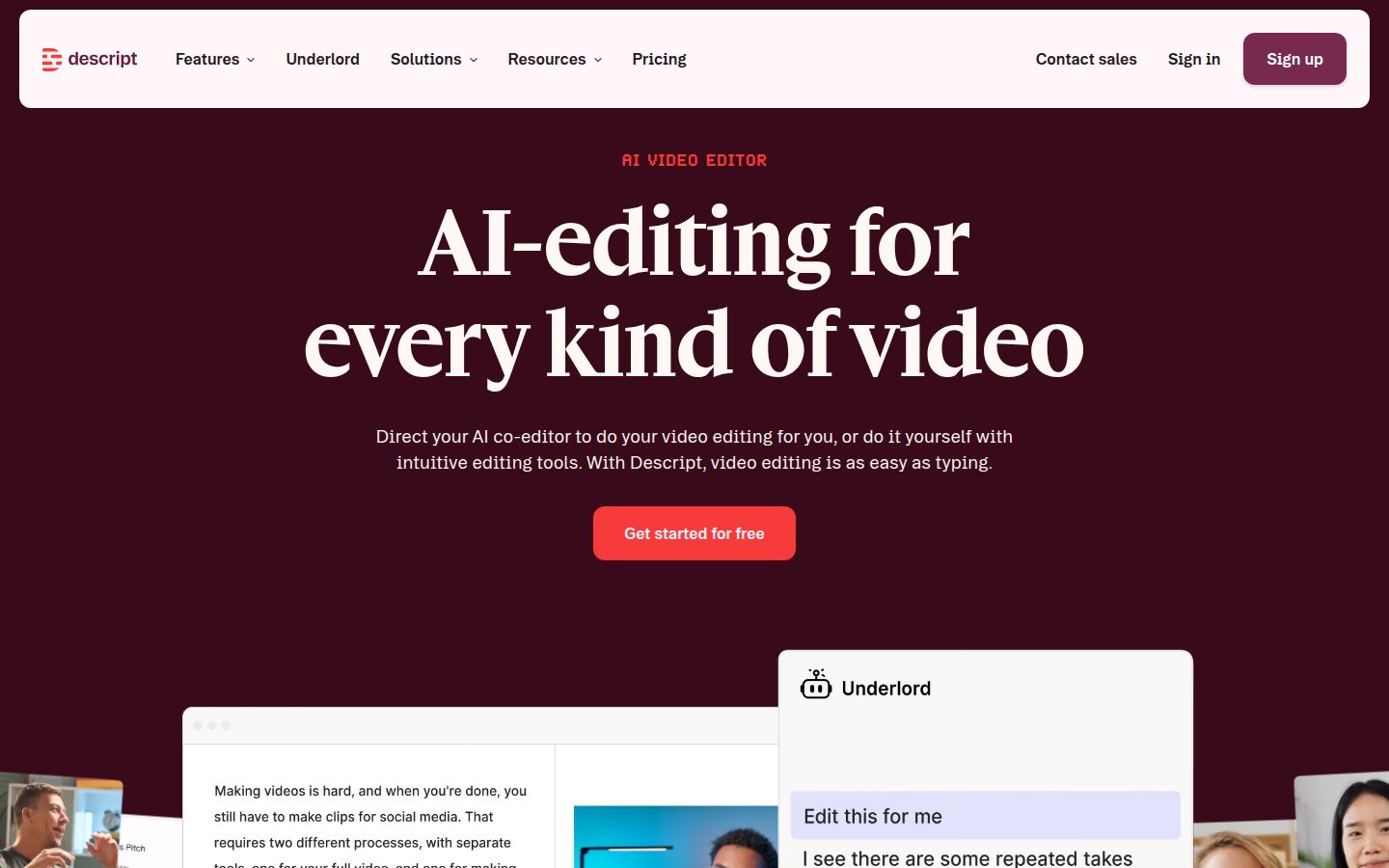
Descript is an AI video and audio editor built around the transcript. Your recording becomes text, and when you delete a word from the text, the matching part of the video goes too. Its homepage says editing video is "as easy as typing", and that's the core idea.
For talking-head work, the feature that matters most is filler word removal. In Descript's help center, you open the AI Tools panel in the right sidebar, choose Remove filler words, and get a list of every detected filler. You can review the timestamps, preview the audio and choose how to handle each one. Descript's filler word help article covers the steps.
Descript also has Create Clips, which cuts longer videos into shorter ones. Descript's Create Clips page describes it. Its feature list is wide, with podcast multitrack editing, a screen recorder, AI voices and a multicam tool. You'll use some of that and skip most of the rest if you only make talking-head shorts.
The limits that matter for this comparison:
- The free plan has a watermark and 720p exports. It includes 60 media minutes a month. A third-party breakdown of Descript's pricing reads the same numbers from Descript's pricing page.
- Watermark-free starts at Hobbyist, which exports up to 1080p. 4K export starts at Creator.
- Transcription covers 30+ languages. Descript's transcription page says it supports 30+ languages and can translate captions and transcripts.
Editing: a transcript or a timeline
This is the biggest difference between the two tools, and it changes how the work feels.
In Descript, you start with the words. You cut the bad take by deleting the text, move a sentence by moving the text, and check the result in the preview. If you already write scripts, this will feel natural. Descript's own filler word tool gives you a list you can go through one by one, which suits a creator who wants to keep some "ums" because they sound like real thinking.
In VEED, you start with the timeline. You trim, split and place clips the way you would in a normal browser editor, and the tools sit in a left menu. That's easier to pick up if you've used a timeline editor before. Creators who think in shots and cuts often prefer it.
A comparison by Borumi makes the same split. It describes Descript's transcript editing as its standout feature, and VEED's editing as the more traditional approach, which it says is quicker for simple cuts.
Captions
Both tools can caption a talking-head video automatically, and both can translate captions. The difference is in how much you control the look, and how many languages you need.
VEED gives you more control over the look of the captions. Auto-subtitles come with animated styles, and you can change fonts, colors, animation and word highlights. The Pro plan includes unlimited auto-subtitles and translation to 50+ languages, and translation takes AI credits. VEED's auto subtitle page lists the style controls. It also lets you download the caption file as SRT, VTT or TXT.
Descript's captions page describes adding subtitles "in a single click", and its transcription covers 30+ languages. If you want to get the captions out fast and leave the styling alone, one click is the whole job. If you want to design the caption look per video, VEED has more controls on the page.
Both tools have captions in common, so the decision usually comes down to the rest of the workflow. Pick the one whose editor you'd rather use every day.
Pricing: which one is cheaper for watermark-free video
For a single creator who needs watermark-free exports, VEED is the lower price on the pricing pages.
- VEED Creator: $8 per user a month billed yearly, or $96 a year. No watermark, Full HD 1080p exports, unlimited video length and 120 hours of subtitles a year.
- Descript Hobbyist: $16 a month billed yearly, or $192 a year. Watermark-free, 1080p export, 10 media hours a month and 400 AI credits a month.
Descript's Hobbyist plan lists 10 media hours a month, and it includes Remove Filler Words and Create Clips. VEED's Creator plan lists credits and subtitle hours instead, and those don't map directly to media hours. So the two prices don't compare evenly. Work out which limit you'll hit first.
If you want 4K, the price moves up. VEED's 4K export is on Pro at $19 a month billed yearly. Descript's 4K export is on Creator at $24 a month billed yearly.
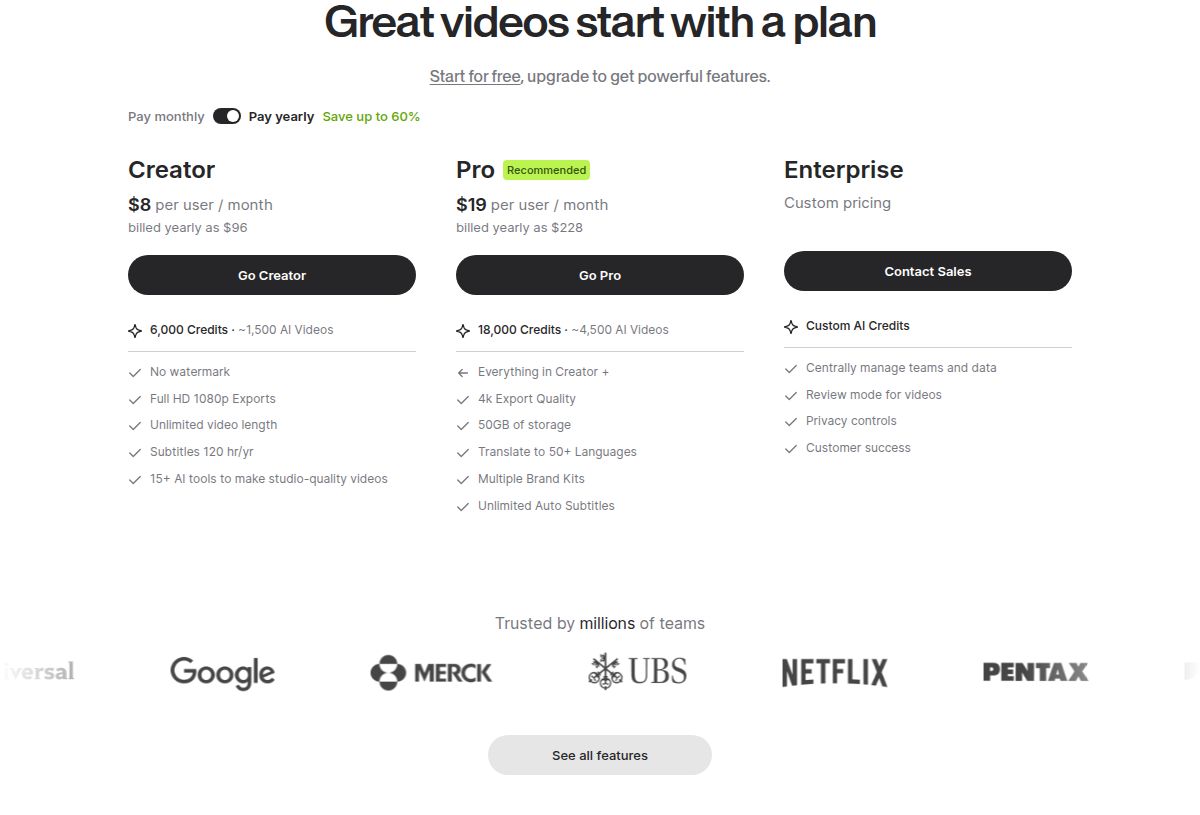 VEED's pricing page showing the Creator and Pro plans
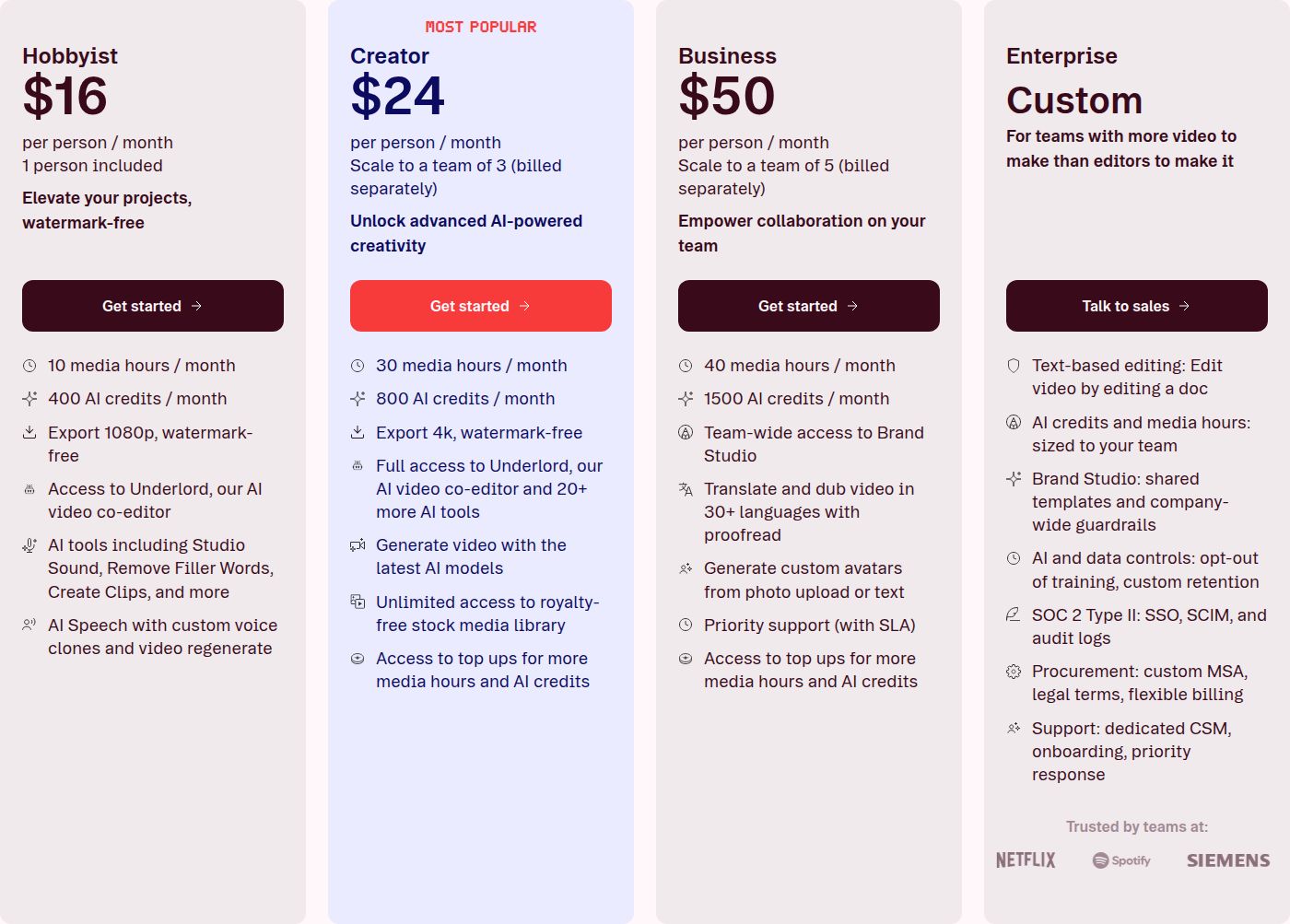 Descript's pricing page showing the Hobbyist and Creator plans
Ease of use and what users report
Both tools are easy to start in a browser, and both let you try for free. Descript also has Windows and macOS apps, and VEED has an iOS app, so check which platform you edit on.
Reviews are mixed for VEED. In a 2025 Reddit thread, one creator says the editor works well "but only sometimes", and describes captions that resize in odd ways. Other threads report a gap between the marketing and the product, and a 2025 r/SaaS post describes being pushed into an annual plan just to test it. These are individual reports, not a survey. Other users in older threads say VEED's subtitles work well for them.
Descript's reviews focus on the transcript editing. CreatorStackClub's comparison says that deleting text in Descript deletes the audio and video, and it calls that approach one that saves real time. We didn't find a set of recent user reviews for Descript that we could read in full, so treat that as the editorial view, not a measured result.
Which one should you pick
Pick VEED if:
- You want a browser editor that works like a normal timeline, and you don't want to learn a new way to edit.
- You want the lower watermark-free price, and you're fine with Creator for 1080p exports.
- You need templates, a wide set of subtitle styles, or translation into 50+ languages. Translation is on Pro, and it draws on AI credits.
- You want AI video and avatar tools in the same place as your editor.
Pick Descript if:
- You think in text, and you want to cut by deleting words.
- You want the filler word list and the retake tools in one place, and you want to keep some filler words on purpose.
- You also make podcasts, long videos or clips from longer recordings, and you'll use the wider feature set.
- You need Descript's 4K export and are fine with the Creator price.
Pick neither if you only want a fast captioned short with the whole edit done for you. Both editors give you control, which also means you do more of the edit yourself. The Sycamore section below covers a tool built for that job.
If you're on the free plans: Descript's free plan gives you more media minutes, 60 a month. VEED's free plan gives you a watermark and 720p exports. Both put a watermark on the free export, so use the free plan to test your workflow, not to publish.
Sycamore

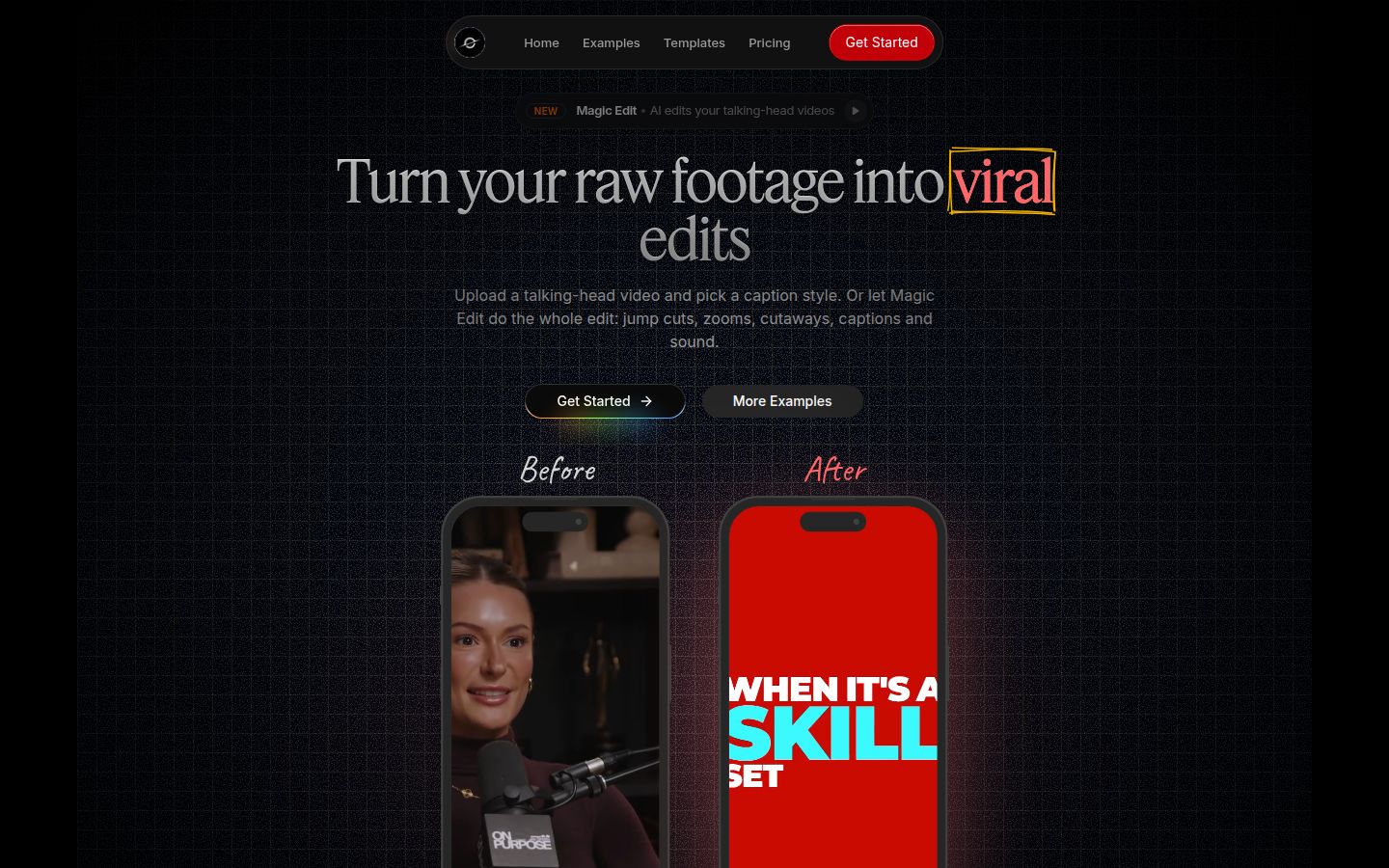
Sycamore is a web app that turns a raw talking-head recording into a finished, captioned short. It runs in the browser, so there's nothing to install.
Its best feature is Magic Edit. You upload a talking-head video and pick an edit style. Magic Edit removes silences and filler words, adds word-by-word captions, emphasizes key lines and adds zooms and full-screen text for the big moments, all in one pass. You then review the edit, change any line and export. Each line can be set to Normal, Emphasis, Full screen, Number, List or Label.
If you'd rather style the captions yourself, Sycamore has that too. You can edit any word, change the font, colors, size, animation and position, and save a look as a preset to reuse on every video.
Pricing, as of October 2026:
- Free: 10 minutes of video, one time, no credit card.
- Starter: $19 a month for 3 hours of video, no watermark.
- Growth: $39 a month for 10 hours of video, no watermark, with priority rendering.
Sycamore is the right pick if you make talking-head shorts, you want the edit done in one pass, and you want to review the result before export. It's built for that one job, so there's less to learn than in a full editor.
Sycamore has real limits, and they matter for this choice:
- Transcription is English only. If you need other languages or translation, use VEED or Descript.
- It edits the video you give it. It doesn't cut a long video into many shorts, so use Descript's Create Clips for that.
- It has no mobile app and no team features. It works in a phone's browser. If you need a team workspace, look at the other two.
Pick the one that fits the job
If your job is editing talking-head footage by reading the text, pick Descript. If your job is a browser editor with templates, subtitle styles and translation, pick VEED. If your job is a finished, captioned short from a raw talking-head video in one pass, and you don't need other languages, try Sycamore's free plan on one of your own videos and see the result.
FAQ
Is VEED free to use?
Yes. VEED has a free plan, but its exports carry a VEED watermark and are capped at 720p. Check the pricing page for the current free limits before you start.
Does Descript's free plan add a watermark?
Yes. Descript's free plan includes 60 media minutes a month, with 720p exports that carry a Descript watermark. Watermark-free export starts on the Hobbyist plan.
Which is cheaper for watermark-free videos, VEED or Descript?
VEED's Creator plan is cheaper on the pricing pages: $8 per user a month billed yearly ($96 a year). Descript's Hobbyist plan is $16 a month billed yearly ($192 a year), and it's watermark-free at 1080p.
Can Descript remove filler words automatically?
Yes. Open the AI Tools panel, choose Remove filler words, and Descript lists each detected filler with its timestamp. You can preview each one and decide how to handle it.
Do VEED and Descript caption videos in other languages?
Descript transcribes in 30+ languages and can translate captions. VEED's transcription and translation lists vary by language, and translation to 50+ languages is on its Pro plan and uses AI credits.
Is there a cheaper option for talking-head shorts?
Sycamore has a free plan with 10 minutes of video, one time, and no credit card. Its Starter plan is $19 a month for 3 hours of video with no watermark. It transcribes English only.