If you film yourself talking and post to TikTok, Instagram Reels or YouTube Shorts, burn the captions into the video when the look matters or when you post the same file to more than one app. Use the platform's own auto captions when you post to one app and want the captions done inside it. Add a separate caption file when viewers need to switch captions off, when you need translations, or when an accessibility standard applies to your work.
The rest of this guide explains the difference, what each platform does with captions, and five tools that can burn captions into a video. Prices are as of October 2026.
What each option does to your video
Burned-in captions, also called open captions, are text drawn into the picture. Shootsta describes them as always visible, identical on every player, and surviving any upload. The trade-off is that they cannot be turned off, edited, restyled or translated without exporting the whole video again.
"Auto captions" covers two different things, and people mix them up:
- Platform captions. The app transcribes your audio and shows the text. TikTok has a Captions button in its editor that writes subtitles from your audio. Instagram writes automatic closed captions at the bottom of a reel once you turn them on. YouTube generates captions for uploads.
- Caption files. An SRT or VTT file uploaded next to the video. The viewer turns it on or off, but only where the player supports caption tracks.
| Burned-in captions | Platform captions | Caption file (SRT or VTT) | |
|---|---|---|---|
| Where the words live | In the video picture | Added by the app | Separate file |
| Viewer can turn them off | No | Usually, where the app offers it | Yes, where the player supports it |
| Styling | Anything you can draw: font, color, motion | Set by the app | Words and timing only |
| Shows on every app | Yes, it's part of the video | Only in the app that adds them | Only where the platform reads the file |
Burned-in captions win on look and on reliability. A caption file wins on flexibility and on accessibility. Platform captions win on speed when you only post to one app.
Do this now
Decide which of those three jobs your video has. Most short talking-head clips need the first one. Accessibility work, translations and long-form YouTube usually need the second.
When burned-in captions are the right choice
Burn captions in when the captions are part of the design, or when you can't count on the platform to show a caption file. Shootsta notes that Stories, Reels, TikTok and vertical ads commonly hide or strip an uploaded caption file, so a sidecar track may never appear.
CutXflow makes the same point about style. An SRT file carries words and timing, not colors, fonts or motion. If you want word-by-word animation or a brand font, the captions have to be in the picture.
Burned-in captions are the right pick when:
- You post one export to TikTok, Reels and Shorts and want the same captions on all three.
- You want animated, word-by-word captions or a specific font and color.
- Viewers will watch with the sound off, and the words have to show with no button to tap.
The cost is real. Viewers can't switch them off, and a typo means re-exporting and uploading again. CutXflow's advice is to read the preview through before you export.
Do this now
Before you export, play the first three seconds with the sound off. Check that the words sit clear of the edges of the frame, where the app's own buttons and captions usually appear.
When auto captions or a caption file are the better choice
Platform captions are the right pick when you post to one app and plain captions are fine. You don't need an export step, and you don't need another tool. Subanana notes that TikTok's auto-captions work well for clean English audio, and less well when background music drowns out the speech. In that case, check the transcript before you post, or burn in your own captions instead.
A caption file is the right pick when:
- You need accessibility. Shootsta cites WCAG 2.1 Success Criterion 1.2.2, which is about a synchronized caption track that users can engage. Auditors can check a file. They can't check pixels in a frame.
- You need more than one language. YouTube lets you add languages to a video in YouTube Studio.
- Your short is part of a longer video on YouTube and you want the captions on both.
- You may need to fix a word later without re-rendering the video.
Shootsta also notes that caption text in a file can be read by search engines, while text burned into the picture cannot.
Do this now
If the clip will live on YouTube as a long-form video too, export an SRT or VTT file and upload it in YouTube Studio. Keep the burned-in MP4 for TikTok and Reels.
What each platform does with captions
Each app handles captions differently. These are the options we checked for October 2026.
TikTok
Use the Captions button in the editor if your clip is plain English, you post only to TikTok, and the speech is clear. For a branded look, burn your own captions into the video before you upload. Subanana's guide has the full steps for both methods.
Instagram Reels
Turn on automatic closed captions and the speech is written out as text at the bottom of the reel, according to Instagram's Help Center. That's the simplest route for a plain reel. For styled captions, burn them in. Our guide to adding captions to Instagram Reels covers both options.
YouTube Shorts
YouTube generates captions for uploads. In YouTube Studio, select Subtitles, pick the video, and use Add language to add a caption file or another language, according to YouTube Help. You can also burn the captions into the video before you upload.
We didn't verify LinkedIn's caption options for this post. Check the caption settings in the app before you choose a method.
Do this now
Pick one method per platform and write it down. Most creators end up with burned-in captions everywhere, plus a caption file for YouTube, because that covers the most cases with the fewest steps.
Five tools that burn captions into a video
Here are five tools that can produce a burned-in video, and what each one does best. Sycamore comes first because it's our product. The others are in the order you might check them.
Sycamore

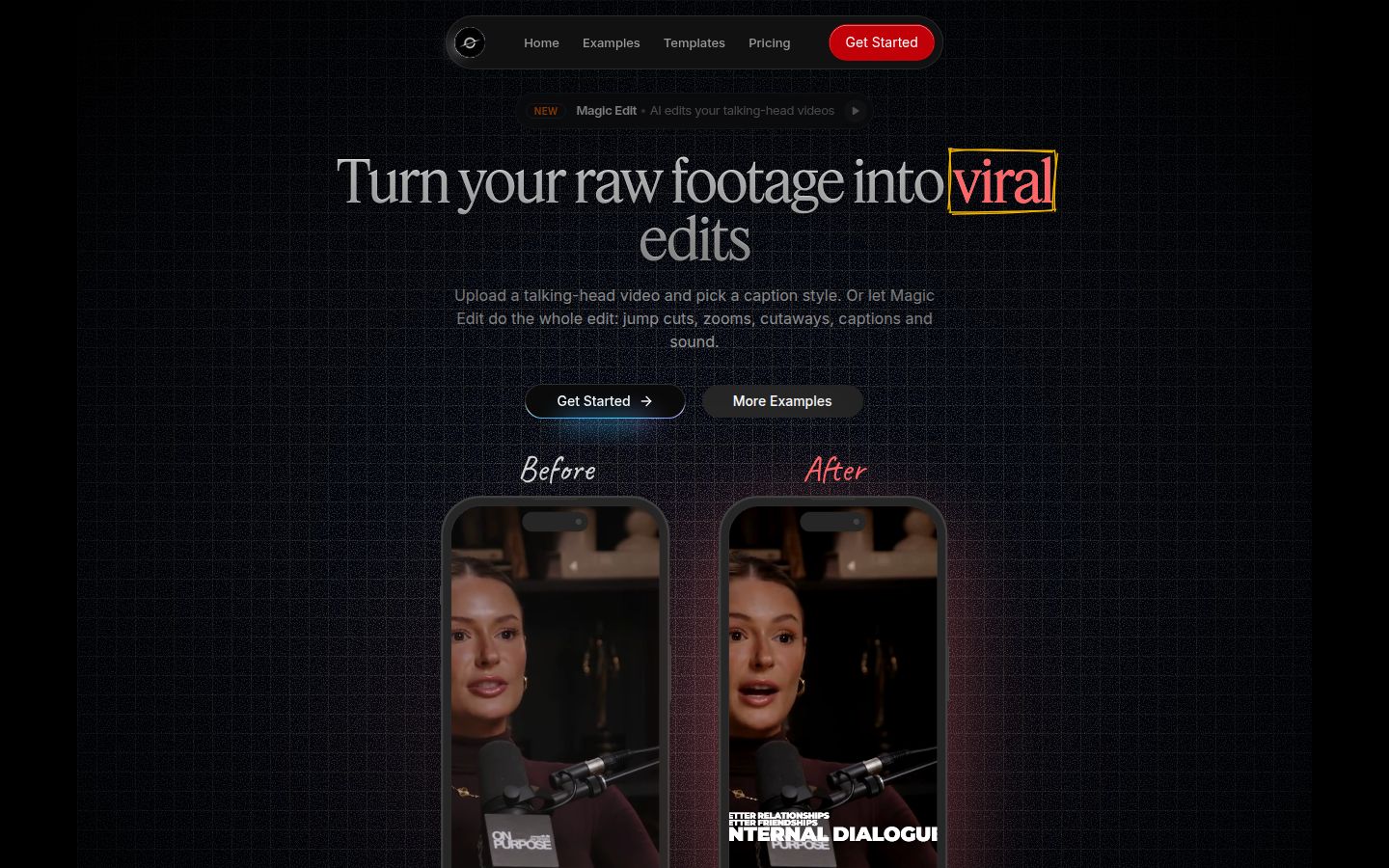
Sycamore is a web app for one job: turning a raw talking-head recording into a finished, captioned short. It runs in your browser, so there's nothing to install.
Magic Edit does most of the work in one pass. You upload the raw video, and Sycamore cuts silences and filler words, adds animated captions that match each word, and adds emphasis on key lines, zooms and full-screen text cutaways. You pick an edit style, then review the result. Each line is set to Normal, Emphasis, Full screen, Number, List or Label, so you can see what the edit did and change it before you export an MP4 in 9:16, 1:1 or 16:9.
If you only want captions, skip Magic Edit. You can edit any word, change the font, color, size, animation and position, and save the look as a preset for the next video. Every word is timed in a word-level transcript, so the captions stay in sync.
Plans, as of October 2026, from Sycamore's pricing page:
- Free: 10 minutes of video, one time, no credit card.
- Starter: $19 a month for 3 hours of video, no watermark.
- Growth: $39 a month for 10 hours of video, no watermark, with priority rendering.
Uploads can be MP4, MOV, WebM or MP3, up to 2 hours.
Sycamore is the right pick if you film talking-head clips, want the edit and captions done in one pass, and want to stay in control by reviewing the edit before export. It's built for a narrow job, so there is less to learn than in a full video editor.
Limits that matter for this choice:
- Sycamore exports the MP4 with the captions in the picture. It doesn't export an SRT or VTT file.
- Transcription is English only.
- It edits the video you give it. It doesn't cut a long recording into many shorts.
Do this now
Upload one raw clip on the free allowance and export it with Magic Edit on, then with captions only. Compare the two before you choose a style for every video.
Submagic

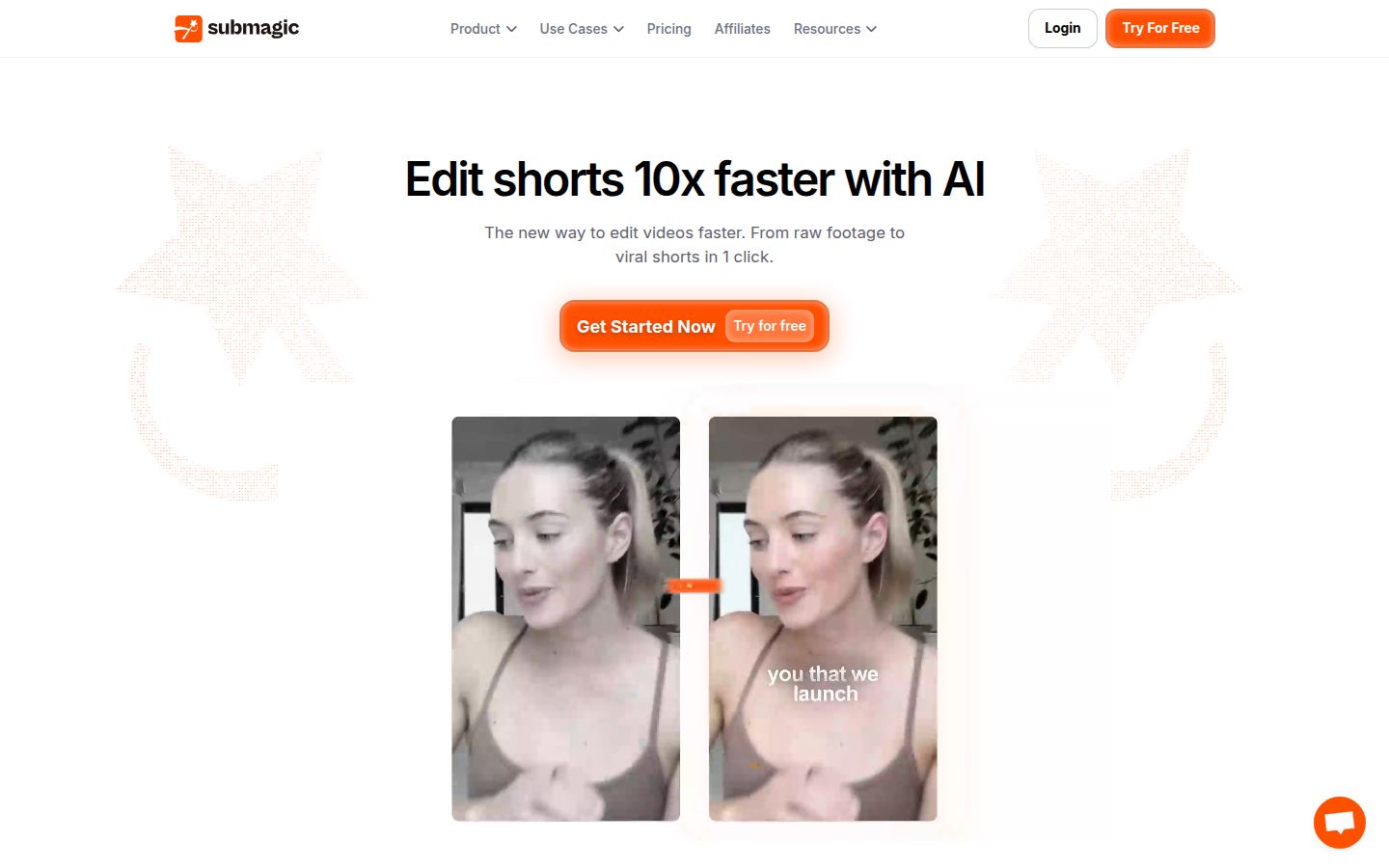
Submagic is built around fast captions for short-form video. Its homepage promises a raw-footage-to-short workflow in one click. It also covers more of the post-production work than the captions alone, including B-roll, sound effects and background music.
Submagic's help center lists its plans as of September 30, 2026. Starter is $19 a month for 15 uploads. Professional, called Pro in some Submagic pages, is $39 a month for 40 uploads. Business is $69 a month for 100 uploads. Yearly billing is lower, at $12, $23 and $41 a month per member, according to StoryCut's check of Submagic's pricing. Magic Clips, which turns a long video into short clips, is an add-on at $19 a month for 10 uploads.
For a burned-in workflow, Submagic can export subtitles as SRT, VTT or hardcoded captions, according to its subtitles download page. Its free trial lets you edit three short videos without a card. Downloading them without a watermark needs a paid plan.
Submagic is the better pick if you need a caption file, Magic Clips for long recordings, or B-roll and background music in the same tool. Pro also includes publishing to one profile per platform.
Limits that matter for this choice:
- Video length caps: 2 minutes on Starter, 5 minutes on Pro and 30 minutes on Business, per StoryCut's table of Submagic's limits.
- Long recordings cost extra. Magic Clips is an add-on.
Do this now
If your clips are under two minutes, try Starter for one month and export one clip with the captions burned in and one with the SRT file, so you can see which one you need.
CapCut


CapCut is a full video editor. It runs on desktop, online and in a mobile app, and it has a timeline with multiple tracks, so you can make every cut and layer yourself. That makes it a good fit for creators who want a free start and full manual control.
Its free plan includes auto captions, but CostBench lists them as limited on that plan. Pro is $19.99 a month or $179.99 a year in the US, and the cheaper Standard plan at $9.99 a month is sold in the mobile app, according to FluxNote's October 12, 2026 check of capcut.com. Sources disagree on how far the free captions go, so check the in-app prompt before you plan around them.
CapCut can export subtitles as an SRT or TXT file, according to CapCut's subtitle guide and a walkthrough on GoTranscript.
CapCut is the better pick if you want the mobile app, a free start, or full control over every frame. It's also the better pick for a caption file alongside a burned-in video.
Limits that matter for this choice: a full editor has more decisions per video than a one-job tool, and free captions are limited.
Do this now
Use the free plan to caption one clip. If the limits stop you, you'll know before you pay.
Descript

Descript is an editor where you cut video by editing its transcript. Delete a sentence in the text and the video cuts with it. It has audio tools, a recorder and captions in one place.
Its captions can export both ways. Descript's help says you can export subtitles as an SRT or VTT file, and its captions page says you can export a video with embedded open captions for posting, according to Descript's subtitles export guide and its add subtitles page.
Plans, per person per month, checked by StoryCut on October 3, 2026 against Descript's pricing page: Free includes 60 media minutes a month, 720p exports with a watermark. Hobbyist is $24 a month, or $16 billed yearly. Creator is $35, or $24 yearly. Business is $65, or $50 yearly.
Descript is the better pick if you want one project that gives you a burned-in video and a caption file, or if you also edit audio and record. It's a bigger tool, so it takes longer to learn than a plain caption tool.
Limits that matter for this choice: the Free plan exports carry a watermark and cap at 720p, and a talking-head short needs fewer features than Descript offers.
Do this now
Import one clip and try the transcript edit on the first ten seconds. If you like editing that way, the Free plan is enough to judge it.
Opus Clip

Opus Clip starts from a long video and cuts it into several short clips with captions. Its homepage describes the job as "1 long video, 10 viral clips."
Plans, per Opus Clip's pricing page and third-party summaries from eesel and CastMagic: Free is $0 with 60 processing minutes a month. Starter is $15 a month with 150 processing minutes. Pro is $29 a month with 300 processing minutes. Business is custom. Free exports carry a watermark and have a short download window, about 3 days, according to CastMagic and eesel.
For caption files, Pro users can download transcripts and subtitles of the original video, according to Opus Clip's help center. You can also upload your own SRT with the video, per its SRT help article.
Opus Clip is the better pick if you have long recordings and need many clips from each one, or if you want to import from a YouTube link on the Pro plan. Its homepage lists the import sources for Pro.
Limits that matter for this choice: it's built for clipping, so one talking-head video to caption is more tool than you need. Free exports have a watermark.
Do this now
If you have one long recording, try the free plan on it. If you already have short clips, you probably don't need a clipping tool.
Which one to use
Here's the short version, based on what each tool does and the platform rules above.
| Your situation | Pick |
|---|---|
| Same branded captions on TikTok, Reels and Shorts | Burned-in captions from Sycamore, Submagic, CapCut or Descript |
| One clip, one app, plain captions are fine | The platform's own captions |
| Accessibility, translations, or viewers switching captions off | A caption file (SRT or VTT) |
| One long recording, many clips | Opus Clip, or Submagic with Magic Clips |
| Burned-in video and a caption file from one project | Descript, Submagic or CapCut |
Sycamore fits talking-head shorts that post to several apps, when you want a styled look and an edit you review before export. Sycamore doesn't export a caption file or handle long recordings, so use one of the other tools when you need either.
Do this now
Write down which of the three jobs each clip needs, then pick the row in the table that matches. Don't pick a tool before you know the job.
A quick workflow that covers both
Use this if you want the captions on every platform and a caption file for YouTube or accessibility.
- Edit and caption the clip in your tool of choice. Sycamore's guide to editing raw talking-head footage walks through the cuts.
- Play the first three seconds with the sound off, and check that the words clear the edges of the frame.
- Export the burned-in MP4 for TikTok, Reels and Shorts.
- If the same video goes to YouTube as a long-form video, or needs accessibility captions, export the SRT or VTT file too. Sycamore doesn't export this file, so use Descript, Submagic, CapCut or Opus Clip (Pro) for this step.
- Upload the caption file in YouTube Studio under Subtitles. Keep the project so you can fix a typo and re-export.
Do this now
Run steps one to three on your next clip. Add steps four and five only when a platform or a standard needs them.
FAQ
Can viewers turn off burned-in captions?
No. Burned-in captions are part of the picture, so they always show. To change them, you have to re-export the video and upload it again.
Do Instagram Reels and TikTok show uploaded caption files?
Not always. Shootsta notes that Stories, Reels and TikTok commonly hide or strip an uploaded caption file, so burned-in captions are the safer choice for those apps.
Does Sycamore export an SRT or VTT caption file?
No. Sycamore exports an MP4 with the captions in the picture, and its transcription is English only. Use Descript, Submagic or CapCut if you need a caption file.
Are CapCut's auto captions free?
The free plan includes auto captions, but CostBench lists them as limited. CapCut Pro is $19.99 a month or $179.99 a year in the US, per FluxNote's October 2026 check of capcut.com. Check the in-app prompt before you rely on the free captions.
How much does Submagic cost in 2026?
Starter is $19 a month for 15 uploads, Pro is $39 a month for 40 uploads and Business is $69 a month for 100 uploads, according to Submagic's help center. Yearly billing costs less per month.
Do YouTube Shorts need a separate caption file?
No. YouTube generates captions for uploads, and you can add your own file in YouTube Studio under Subtitles. A burned-in video works without a file too.
Is Descript's free plan enough to post captioned shorts?
It's enough to test the workflow. The free plan gives 60 media minutes a month, but exports carry a watermark and cap at 720p, so branded clips for posting need a paid plan.