A jump cut is a cut inside one continuous shot. You stay in the same frame, but the edit makes you seem to jump: you're slightly bigger, shifted, or your words skip ahead. On talking-head videos, that visible cut is the point. You remove the pauses, the "ums," and the false starts, and the video moves at the pace people scroll.
So when should you use one? Use a jump cut whenever it removes dead air or filler without changing what you mean. Use a punch-in, which is a zoom jump cut, on the line you want people to remember. Leave the pause in when it's doing work: a beat before a punchline, a serious moment, or a point where the viewer needs a second to take in what you said.
This guide covers the rules, a four-pass edit you can run on any raw take, and five tools that do the cutting, with prices as of October 2026.
What a jump cut is, and why short video uses them
Adobe describes a jump cut as a break in a continuous shot that makes the subject appear to jump to a different position. Adobe's definition is useful because it gives the rule: the jump cut sits inside one continuous shot.
Film editors used to hide cuts. Short-form creators do the opposite. A pacing guide for short video calls the jump cut the default, because it lets you remove pauses and slow transitions and keep every sentence moving (Komet Media).
Do this now: Mute your last short and count the seconds with no word spoken. Those seconds are your first jump-cut candidates.
When to use a jump cut
Use one when the cut helps the viewer and doesn't change your meaning. The usual cases:
- Pauses over about half a second. A pacing guide for talking-head editing suggests a minimum silence of 0.3 to 0.5 seconds as the safe range for removal. Shorter than that and the edit sounds choppy. Longer and the viewer feels the gap (CutFast).
- Filler words. "Um," "uh," and the repeated "so" or "you know."
- False starts. When you restart a sentence, keep the clean version and cut the attempt.
- Repeated points. If you said the same thing twice, keep the stronger take.
- Emphasis moments. A punch-in on a key tip or a punchline. More on this below.
A useful rule from one talking-head editing guide: cut every pause over 0.3 seconds and every false start, then switch between full frame and a 15 to 20 percent punch-in at sentence breaks. The punch-in hides the jump cut (Vyra).
When to leave the cut out
Some pauses should stay. Keep them when:
- The pause sets up a punchline. Cutting that beat flattens the line that follows.
- The moment is serious. A stop after a hard fact can carry more weight than another sentence.
- Removing the gap changes the meaning. If a cut removes a word that qualifies your claim, keep the original take.
- The tight version feels rushed. Play it once with the sound on. If you feel out of breath while watching it, add back a beat or two.
Do this now: Mark one spot in your next video where a pause should stay, then leave it alone.
Use a zoom jump cut to add emphasis
A zoom jump cut, sometimes called a punch-in, is a cut that changes the crop size on the same shot. Katie Steckly walks through the method in her Instagram Reels tutorial, posted in April 2024. She says it's used to emphasize what you're saying, and she's clear that it works only at the right moment, "not just randomly placed."
Her steps in the Reels editor:
- Import your clip and scrub to the point where the zoom should start.
- Tap split.
- Scrub to where the video should return to the wide shot, and split again.
- Select the middle clip, open crop, and pinch to zoom in.
Put the punch-in on your most important tip, your clever line, or the punchline. Don't add one every ten seconds. That's how a punch-in starts to look like a glitch.
A four-pass edit for any raw take
Work through a raw take in four passes. Each one takes less time than the one before because the earlier passes do most of the cutting.
- Clean the words. Read the transcript and delete the filler words and false starts. Reading is faster than scrubbing a timeline, and it shows the repeats you'd miss by ear.
- Remove the silence. Set your silence threshold to about 0.3 to 0.5 seconds and cut everything longer. Leave a short breath between thoughts so the cut doesn't sound clipped.
- Add the punch-ins. Place one zoom at a sentence break on each key line. Keep them rare.
- Watch with captions on and sound off. Check that each cut lands on the start of a word and the meaning holds. Captions show the cut points quickly.
You can do all four in a desktop editor. Or you can use one of the tools below to do most of the first three.
Five tools for jump cuts on talking-head video
The table compares the basics. Prices are monthly, as of October 2026, and each tool's own pricing page or help page is the source.
| Tool | How it handles jump cuts | Starting price (monthly) | Free option | Best for |
|---|---|---|---|---|
| Sycamore | Magic Edit cuts silences and filler words, adds zooms and captions, and you review the edit before export | Starter $19 (3 hours of video); Growth $39 (10 hours) | 10 minutes of video, one time, no card | One raw take in, one finished short out |
| Submagic | One-click silence and filler removal, plus text-based trimming | Starter $19, Professional $39, Business $69 | Free trial on its homepage | Text trimming and clipping longer videos |
| Descript | Remove filler words, Smooth jump cuts, and a full text-based editor | Hobbyist $24, or $16 billed annually (10 media hours) | Free plan with 60 media minutes a month | Editing by deleting words, plus full production |
| CapCut | Silence Remover and filler-word removal in a browser editor | Pro about $19.99 in the US (varies by region) | Free editor | A free full editor with templates |
| OpusClip | Filler and silence removal, plus AI clipping of long videos | Starter $15, Pro $29 | Free plan with 60 credits a month, watermark on clips | Turning a long recording into several shorts |
Sycamore
Sycamore is our product. Magic Edit takes a raw talking-head upload and cuts silences and filler words, adds word-synced captions and emphasis, and places zooms and full-screen text cutaways. You pick an edit style (Apollo or Hermes), then review the edit line by line before you export. Each line can be set to Normal, Emphasis, Full screen, Number, List or Label. You can restore any cut from the transcript and export again.
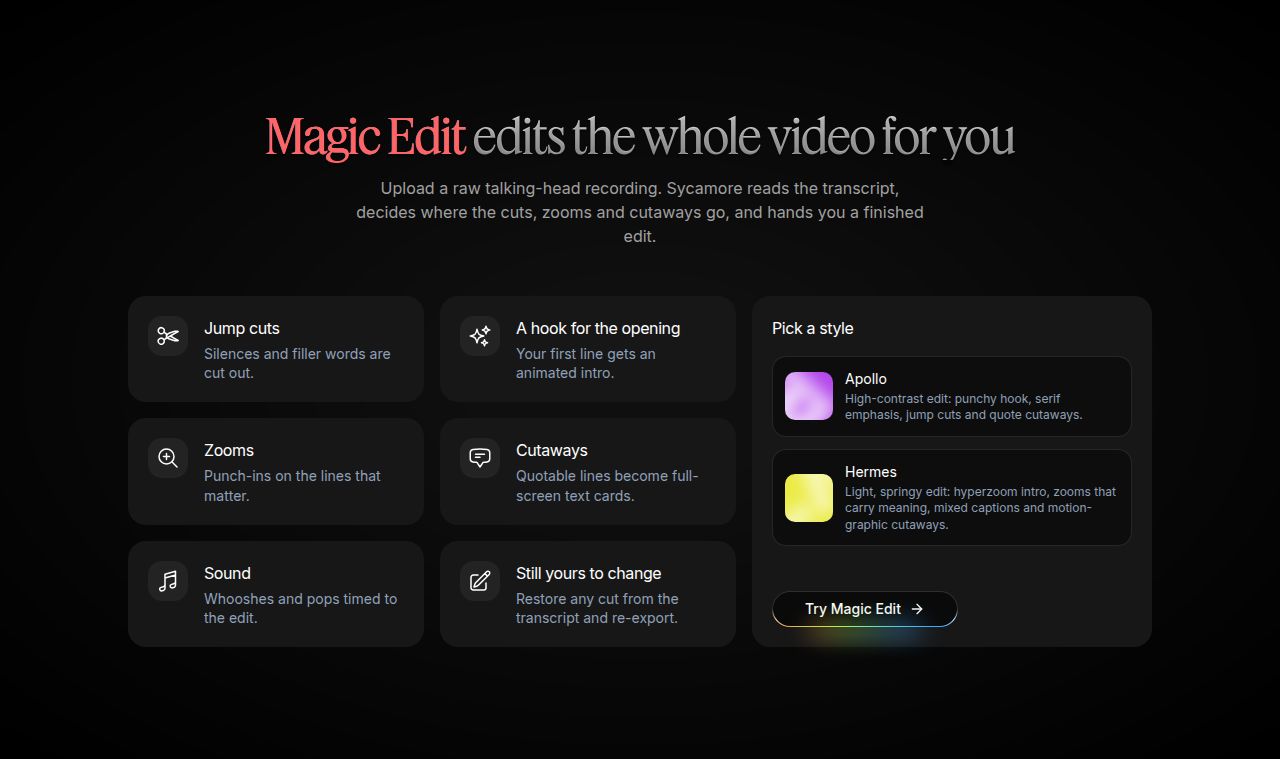 Sycamore homepage section describing Magic Edit, with jump cuts, zooms and cutaways
Pricing, per Sycamore's pricing page: Free gives you 10 minutes of video, one time, with no credit card. Starter is $19 a month for 3 hours of video, and Growth is $39 a month for 10 hours. Paid plans have no watermark. You can upload MP4, MOV, WebM or MP3 files up to 2 hours long.
Sycamore is the right pick when you want one pass from a raw recording to a finished, captioned short, and you want to check the edit before you export. It's built for talking-head content on TikTok, Reels, Shorts and LinkedIn.
Its limits for this decision:
- Transcription is English only.
- It edits the video you give it. It doesn't cut a long video into many shorts.
- It has no B-roll library, no AI avatars, no AI voice, and no auto-posting or scheduling.
- It works in a phone's browser. There's no mobile app.
Submagic
Submagic's trim tool has three ways to cut: an automatic silence removal, a timeline trimmer, and text-based trimming from the transcript. Delete a word in the transcript and that part of the video goes too.
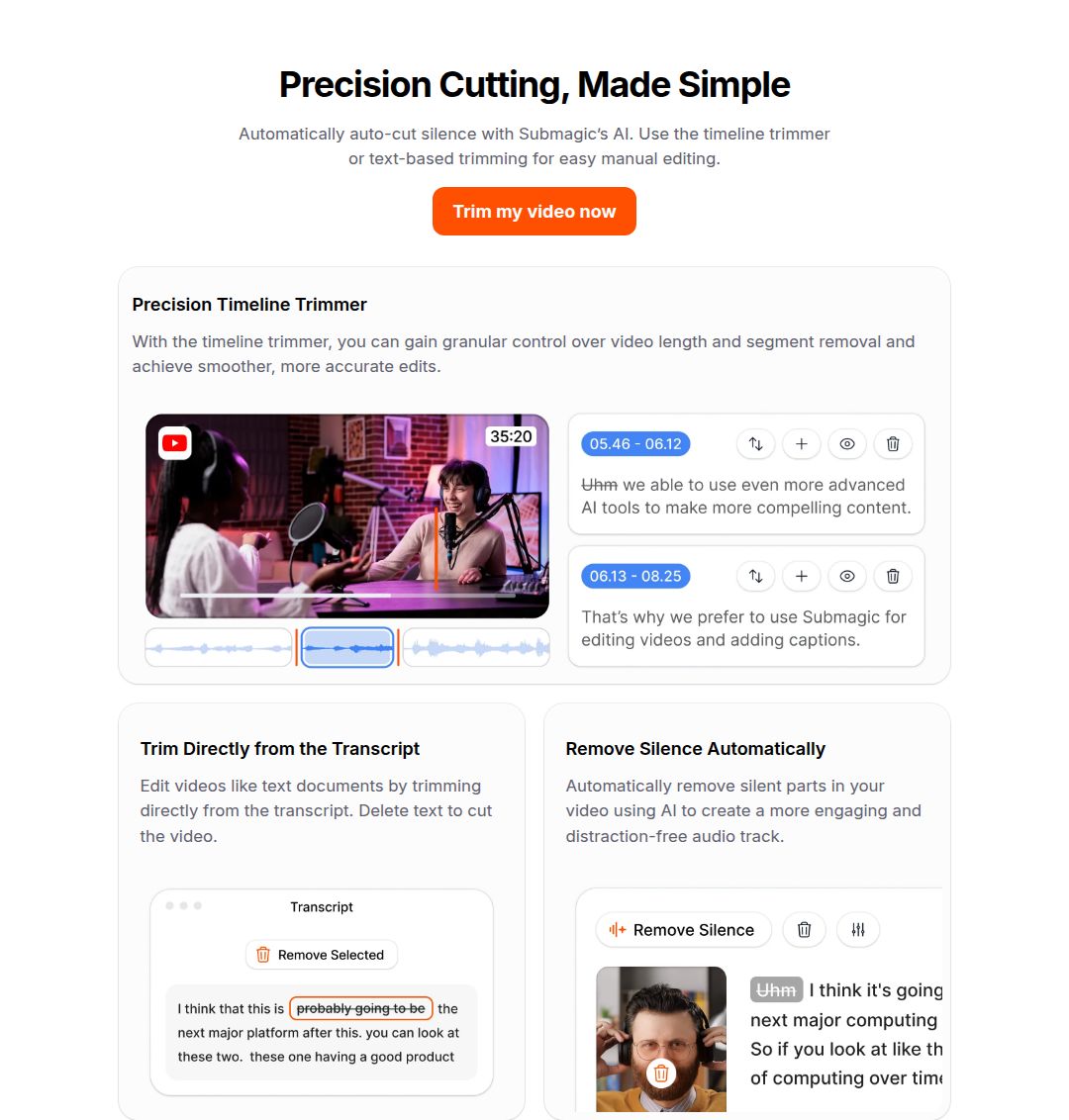 Submagic trim page showing automatic silence removal, a timeline trimmer and transcript trimming
Submagic's help article on cost, updated September 30, 2026, lists Starter at $19 a month with 15 video uploads, Professional at $39 with 40 uploads, and Business at $69 with 100 uploads. Its pricing page shows lower annual rates of $12, $23 and $41 per member a month when you bill yearly. Magic Clips, its tool for pulling shorts from longer videos, is an add-on at $19 a month for 10 uploads.
Submagic is a good fit if you want text-based trimming and a clip tool in one place. It also has B-roll, auto-zoom and a clip maker, which Sycamore doesn't offer. If you're comparing it with Sycamore, our Best Submagic Alternatives for Talking-Head Videos covers the options side by side.
Its limits for this decision: the Starter plan caps you at 15 uploads a month, and clipping is a separate add-on.
Descript
Descript is a text-based editor. You edit a transcript, and the video follows. Its Remove Filler Words tool is included on the Hobbyist plan, which is $24 a month or $16 a month billed annually for one person, with 10 media hours a month (Descript pricing).
Descript also has Smooth jump cuts. It scans the project, lists every jump cut, and uses Regenerate to smooth the audio and video at the cuts you approve. On current plans, that feature uses AI credits (Descript Help). Its filler-word detection works on English transcripts only (Descript Help).
Descript fits if you record, edit and publish in one place, or if you want screen recording, multitrack audio or podcast work along with your shorts. Its free plan includes 60 media minutes and 100 AI credits a month (Descript Help).
CapCut
CapCut's browser editor has a Silence Remover and a filler-word workflow, along with auto captions and caption templates (CapCut). The free editor is the main draw. You can start without paying.
CapCut's own plan comparison says the auto caption generator and some advanced AI tools are part of the Pro plan (CapCut). CapCut's help page says Pro pricing varies by region and promotions (CapCut Help). Price trackers checked in September 2026 list US prices of $9.99 a month for Standard and $19.99 a month for Pro (CapCut Guide).
CapCut is a good choice if you want a full free editor with a large template library on your phone or desktop, and you're willing to do the silence and filler passes by hand or with its tools.
OpusClip
OpusClip starts from a long recording. It reads the whole video, picks out segments to post, and returns each one with captions and a vertical crop. Filler and silence removal is part of the Starter plan, which is $15 a month. The Pro plan is $29 a month (OpusClip Pricing). The free plan gives you 60 credits a month, and clips on the free plan carry a watermark (OpusClip).
OpusClip fits if you record one long session and want five or ten shorts from it. Sycamore doesn't do that. Its limit for this decision: clips on the free plan carry a watermark.
Which tool should you pick?
Start with what you have, then match the tool to the footage.
- You film one take per short and want it finished in one pass. Choose Sycamore. Magic Edit handles the jump cuts, zooms and captions, and you review before export.
- You want to edit by deleting words and you need more than shorts. Choose Descript. It has filler removal on the Hobbyist plan and a full editor.
- You want a free full editor with templates. Choose CapCut. Check the current Pro price in your region before you commit to it.
- You have long recordings and want many clips. Choose OpusClip. It does the clipping work that Sycamore doesn't.
- You want text trimming and a clip maker in one tool. Choose Submagic. Watch the 15-upload cap on Starter.
If you're unsure, run the same 90-second take through two tools and compare the two edits. You'll learn more from that than from any table.
Try the four passes on your next take
Film one 90-second take this week. Do the four passes by hand, then run the same file through Sycamore's free plan, which gives you 10 minutes of video one time with no card. Watch both versions with the sound off. The better one is the one that moves without you noticing the cuts.
If you're stuck on what to film next, the content ideas by platform and niche page has prompts for talking-head shorts.
FAQ
What is the difference between a jump cut and a zoom jump cut?
A jump cut is any cut inside one continuous shot that makes the subject appear to shift. A zoom jump cut, or punch-in, is a jump cut where the crop changes size, which adds emphasis to a line.
How long should a pause be before I cut it?
A talking-head editing guide suggests removing silences of 0.3 to 0.5 seconds as the safe range. Shorter cuts can sound choppy, and longer gaps feel slow on short video.
Do I need more than one camera to use jump cuts?
No. A jump cut sits inside one continuous shot, so a single camera and one take are enough.
Which tools remove silences and filler words automatically?
Sycamore's Magic Edit, Submagic's trim tool, Descript's Remove Filler Words, CapCut's Silence Remover and OpusClip's filler and silence removal on its Starter plan all do this. Descript's filler detection and Sycamore's transcription are English only.
Is there a free way to try jump cuts on my videos?
Yes. Sycamore's Free plan includes 10 minutes of video one time with no credit card. Descript's free plan includes 60 media minutes a month, OpusClip's free plan includes 60 credits a month with a watermark on clips, and CapCut has a free editor.