Batching means you do each step once for the whole week instead of once per video. You record five videos in one sitting, cut the silences out of all five in one pass, set your captions once, and export the lot. For five 3-minute videos, plan on about 90 minutes of your time once your settings are in place. The first week takes longer.
This guide walks through the steps, then compares four ways to do the editing: CapCut, Descript, Adobe Premiere Pro and Sycamore. Each one suits a different kind of creator. The steps stay the same whichever you pick.
Before you hit record
Write the week's topics and one opening line for each video before you film. The opening line is yours to write. Sycamore edits the footage you give it, so the hook has to come from your recording.
Film all five in the same spot, with the same light, mic, framing and outfit. Matching setups mean one set of caption and zoom settings works for every video in the batch.
Name each file by day and topic, such as mon-pricing-myths.mp4. Good names make the export and upload steps much faster.
The batch workflow in seven steps
-
Film the whole week in one session. Do one clean take of each point. If you stumble, pause, then say the line again. The editor cuts the stumble, but a clean take gives the tool less to fix.
-
Load each video into its own project. Keep one project per video, so the captions and cuts for one clip never bleed into another.
-
Remove silences and filler words first. This is the step that makes a talking-head video feel fast. Each tool below does it differently. In Sycamore, Magic Edit cuts silences and filler words for you. In Premiere, open the Text-Based Editing workspace, choose Pauses from the transcript filter, then use Delete all. In Descript, the filler-word tool finds the ums and uhs in your script, and you remove or keep each one.
-
Set the caption style once. Pick a font, color, size and position, then apply it to the whole batch. In CapCut you can batch edit recognized subtitles across several clips at once. In Sycamore, choose your edit style, then save the look as a preset on the Starter or Growth plan.
-
Add zooms and emphasis. Punch-ins on the key lines keep the eye on the screen. Sycamore adds these in Magic Edit and lets you set each line to Normal, Emphasis, Full screen, Number, List or Label. In the other tools you add them by hand on the timeline.
-
Review every video at full speed. Watch each one from start to finish. Check the first three seconds, every join where a cut happens, and any name or number on screen. Fix any misspelled words in the captions before you export.
-
Export for each platform. Use 9:16 for YouTube Shorts, Instagram Reels and TikTok, 1:1 for a square feed post, and 16:9 for YouTube. Name each export by platform so you don't mix them up when you schedule.
Four ways to do the editing
Each of these can turn a week of talking-head footage into finished shorts. The difference is how much of the cutting the tool does for you, and how much you do by hand.
CapCut


CapCut is a full video editor with a timeline, and it has a free version. It includes auto captions, caption templates and speech recognition, and it runs on desktop, online and mobile. If you like to make every cut yourself, the free editor can handle a batch.
CapCut's help pages say you can batch edit recognized subtitles across several clips at once. That is useful when one caption style and a few word fixes apply to the whole week. The same help pages say text you add with Text then Add text, or with Captions then Add captions, can't be batch edited for position, style or size. Style those one at a time.
Pro costs $19.99 a month or $179.99 a year for one user in the US. Prices vary by region and CapCut shows the final price at checkout.
CapCut suits you if you enjoy working on a timeline and want full control of each cut. It is less of a fit if you want the cutting done in one pass.
Descript


Descript edits video through its transcript. You delete a sentence from the text and that footage leaves the video too. Its help center describes filler-word detection: Descript finds words such as "um" and "uh" in your script, and you remove or keep each one. It also has Studio Sound for cleaning up audio, and it offers a desktop app as well as the web.
Pricing as of October 2026 on Descript's pricing page: the Free plan includes 1 media hour a month, with 720p exports and a watermark. Hobbyist is $24 a month, or $16 a month billed yearly, with 10 media hours, 400 AI credits and 1080p exports without a watermark. Creator is $35 a month, or $24 billed yearly, for 30 media hours.
The plans are metered by media hours and AI credits, so the plan you need depends on how much footage you record each week. Five 3-minute videos is 15 minutes of footage, which is more than the free plan covers in one go.
Descript suits podcasters, interview creators and anyone who thinks in transcripts. It is a strong pick when the recording is long and the editing is mostly about the words.
Adobe Premiere Pro

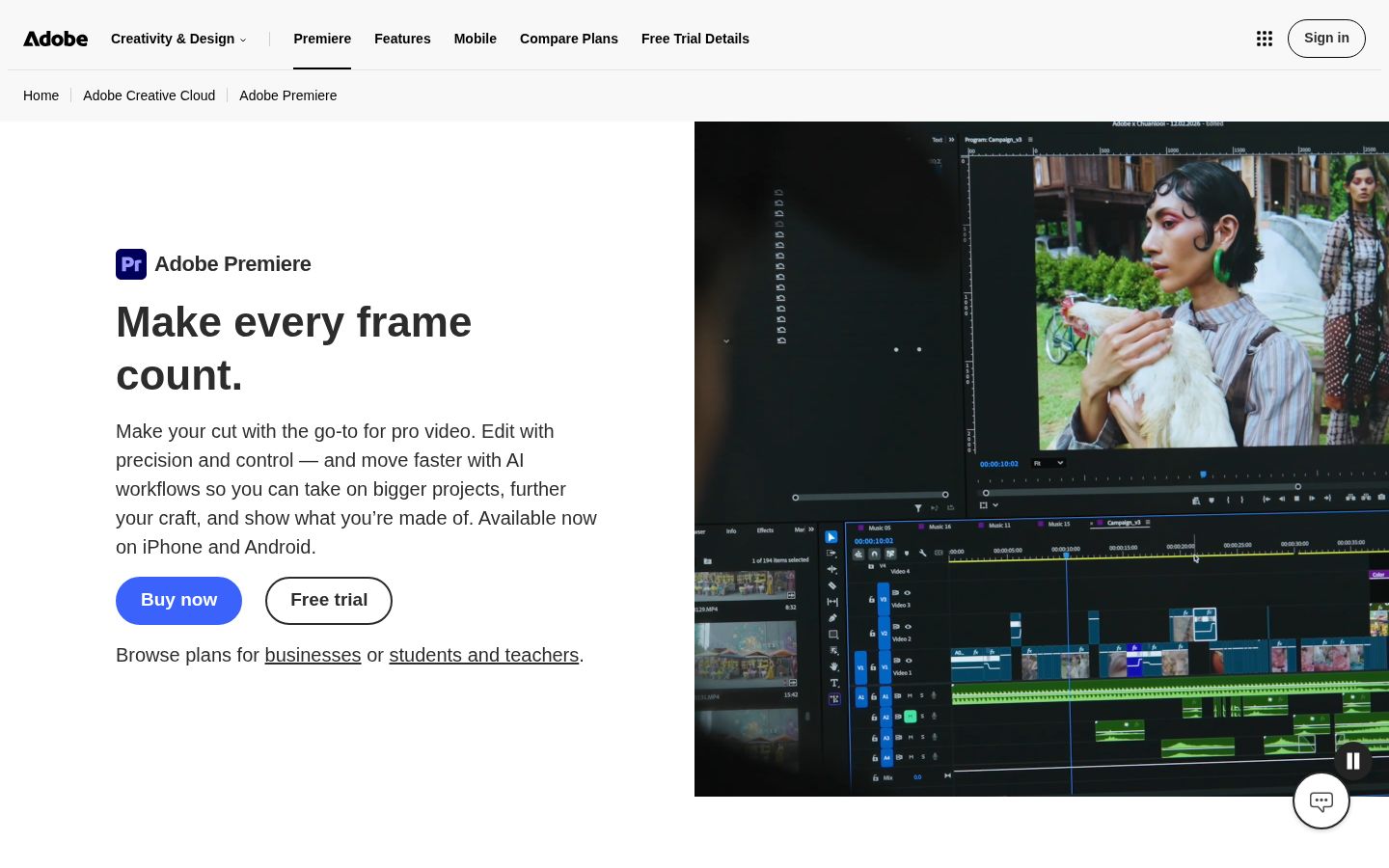
Premiere is a professional desktop editor with a full timeline. Its Text-Based Editing panel gives you the batch tools for step 3: you can detect pauses in the transcript and delete them in bulk with Delete all. Adobe's help also covers filler words in the same panel. Review each cut around the joins, since the panel's options can differ by version.
Adobe lists the single-app plan at $22.99 a month on an annual plan billed monthly, and $34.99 a month with no annual commitment, in the US.
Premiere suits creators who already edit in it, and anyone who wants full timeline control and Adobe's other apps. It has more to learn than the other three options, and it is a subscription.
Sycamore

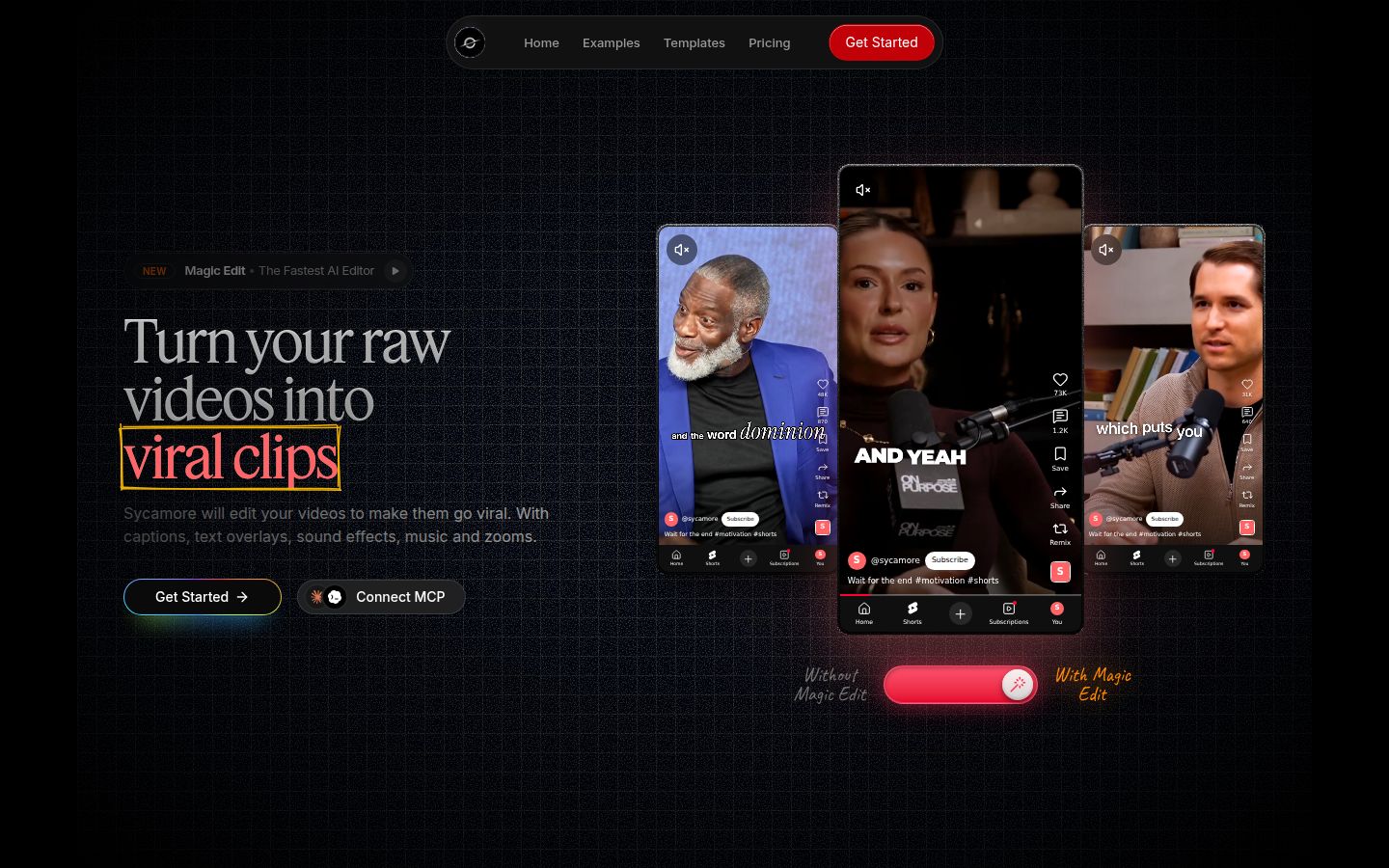
Sycamore is an AI video editor for talking-head videos. You upload raw footage and Magic Edit turns it into a finished short. It cuts silences and filler words, then adds zooms, emphasis on key lines, full-screen text cutaways and word-by-word captions. It runs in your browser, so there is nothing to install.
For a batch, the routine is the same for each video: upload, choose one of the four edit styles (Apollo, Hermes, Athena or Helios), review the edit, then export. The editor works in plain words, and you can switch the edit style without starting over. Export is an MP4 in 9:16, 1:1 or 16:9.
Captions follow the transcript you edit. If a name is misspelled, you fix the word once and the caption follows. The paid plans also let you save a style preset, so the next batch starts from the same look.
Pricing as of October 2026: the Free plan gives you 10 minutes of video, one time, with no credit card. Starter is $19 a month for 3 hours of video a month, and Growth is $39 a month for 10 hours, both without a watermark. Uploads can be MP4, MOV, WebM or MP3, up to 2 hours each.
Sycamore suits a person who films themselves talking and wants the edit done in one pass, without learning a timeline. It edits what you filmed, so it doesn't write your script or your hook. It also doesn't add B-roll, stock footage, music, AI voices or avatars. Two limits matter for a batch. Transcription is English only, and it is a web app with no mobile app. There are no team or collaboration features, and it doesn't post or schedule for you.
For a side-by-side with CapCut, see Sycamore vs CapCut for Talking-Head Videos.
Which one fits your week
| Tool | Price (US, October 2026) | Free option | Best for |
|---|---|---|---|
| CapCut | Pro $19.99/month or $179.99/year | Free editor | Hands-on control on a timeline |
| Descript | Hobbyist $24/month or $16/month billed yearly; Creator $35 or $24 | Free plan, 1 media hour a month | Editing by transcript, podcasts and interviews |
| Adobe Premiere Pro | Single app $22.99/month on an annual plan, or $34.99 monthly | Free trial | Creators already working in Premiere |
| Sycamore | Starter $19/month (3 hours); Growth $39/month (10 hours) | 10 minutes, one time, no card | A finished talking-head edit in one pass |
Prices change, so check each pricing page before you pay. CapCut and Descript show regional and yearly prices that differ from the monthly figures above.
If you already edit in CapCut or Premiere, the seven steps work in them with more manual cuts. If you want the cutting done for you, Sycamore is built for that. Try one or two videos on the free allowance first, since a full week of five 3-minute videos is more than the 10 free minutes.
Common mistakes and how to fix them
Cutting so hard that the video loses breath
Removing every pause makes the video sound rushed, and viewers can't tell where a thought ends. Leave a short beat before each punchline. Play the batch back once with the sound on and check that each line still lands.
Captions that drift after a trim
Captions often break after you cut a clip, because the timing moves. In Sycamore, captions follow the transcript you edit, so re-check them after any trim. In the other tools, play back the first few seconds after every change.
Exporting one size for every platform
A 16:9 export looks wrong on a phone, and a 9:16 export crops a wide shot. Export each video in the size the platform uses, then upload to the matching platform.
Styling new text one clip at a time
In CapCut, text you add by hand can't be batch styled. Pick a text style that you can copy, or save a template you reuse, so the week stays consistent.
Running out of free time
The free allowances are for trying a tool, not running a week. Descript's free plan has 1 media hour a month, and Sycamore's free allowance is 10 minutes one time. Test with one video, then decide.
Recap: the steps
- Plan the week's topics and write one opening line per video.
- Film all five in one session with the same setup.
- Load each video into its own project.
- Remove silences and filler words in every video.
- Set the caption style once and apply it to the batch.
- Add zooms and emphasis, then review each video at full speed.
- Export each video in the size for its platform, and name the files.
If you want a tool that does steps 3 to 5 in one pass, try Sycamore on your next batch. Its free allowance is enough to test one video before you decide.
FAQ
How long does it take to batch edit a week of short videos?
For five 3-minute videos, plan on about 90 minutes once your settings are in place. The first week takes longer while you set up your caption style and export sizes.
Can CapCut batch edit captions across several videos?
CapCut's help pages say you can batch edit recognized subtitles across several clips at once. Text you add by hand with Add text or Add captions can't be batch edited for position, style or size.
What does Sycamore cost for a week of talking-head videos?
The Free plan includes 10 minutes of video one time with no credit card. Starter is $19 a month for 3 hours of video, and Growth is $39 a month for 10 hours, both without a watermark, as of October 2026.
Does Descript have a free plan for batch editing?
Descript's Free plan includes 1 media hour a month, with 720p exports and a watermark. Hobbyist is $24 a month, or $16 a month billed yearly, with 10 media hours and watermark-free 1080p exports.
Can Sycamore edit videos in languages other than English?
No. Sycamore's transcription is English only, so it works for talking-head videos recorded in English.
What is the easiest way to remove pauses from many videos?
In Sycamore, Magic Edit cuts silences and filler words as part of the edit. In Adobe Premiere Pro, use the Text-Based Editing workspace, choose Pauses in the transcript filter, then use Delete all, and review playback around the cuts.
Which export size should I use for a week of shorts?
Use 9:16 for YouTube Shorts, Instagram Reels and TikTok, 1:1 for a square feed post, and 16:9 for YouTube. Export each video in the size its platform uses.