If you film yourself talking and want a finished, captioned short without cutting it by hand, pick Sycamore. If you want a full editor with a timeline, music and effects, and you want to decide every cut yourself, or you already edit in CapCut and like it, pick CapCut. Both can caption a talking-head video, and both have a free way to start.
The real difference is who does the first edit. Sycamore takes a raw recording and makes that first pass: it cuts silences and filler words, adds zooms, emphasis and captions, and then you review the result before you export. CapCut gives you the timeline and the tools, and you make the cuts. Below we compare the two on price, editing, captions, ease of use and output, then say which reader should pick which.
Sycamore vs CapCut at a glance
| Tool | Price (October 2026) | Free option | What it does well | What it's missing or limits | Best for |
|---|---|---|---|---|---|
| Sycamore | Starter $19/month (3 hours of video), Growth $39/month (10 hours of video) | 10 minutes of video, one time, no credit card | One-pass edit of a talking-head recording: cuts, zooms, cutaways and word-by-word captions, reviewed before export | English-only transcription. No music, B-roll or sound effects. Doesn't cut long recordings into many clips. Web app, no mobile app | Creators who want the edit done for them and want to post fast |
| CapCut | Pro $19.99/month or $179.99/year | Free plan, with a full timeline editor and auto captions (with limits) | Full timeline editor, music, effects, templates, caption styles, phone and desktop apps | You make the cuts. Free exports get a watermark when a project uses Pro-only assets. 4K export needs Pro | Creators who want control over every frame and one app for everything |
Prices are as of October 2026. Plans change, so check each pricing page before you pay.
Sycamore

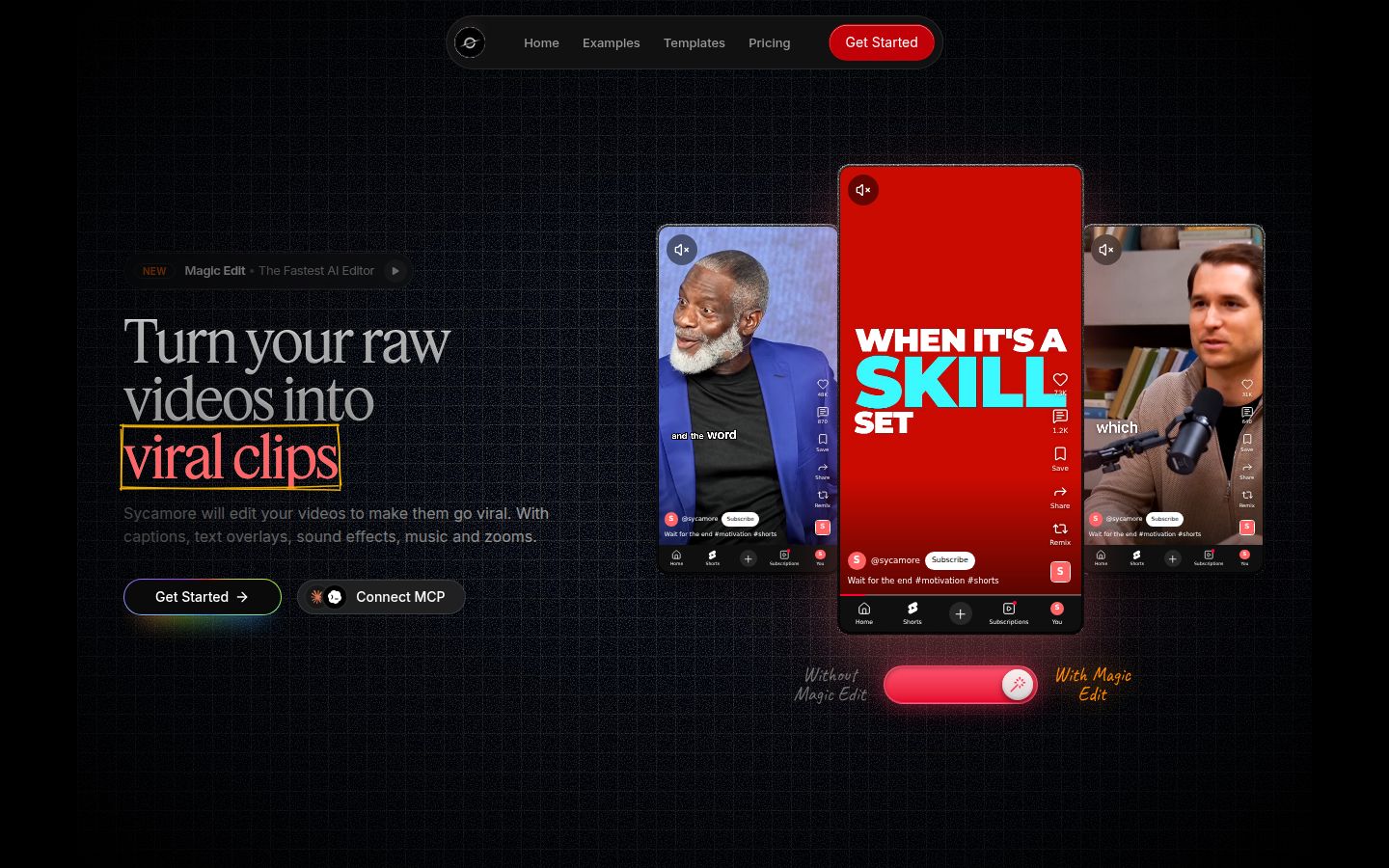
Sycamore is an AI video editor for talking-head videos. You upload a raw recording of yourself talking, as an MP4, MOV, WebM or MP3 up to 2 hours long. It runs in your browser, so there's nothing to install.
The main feature is Magic Edit. Sycamore cuts out silences, filler words and dead air so the video moves. Then it edits for attention: zooms and punch-ins, emphasis on the key lines, full-screen text cutaways on the big moments, numbers and lists on screen, and animated captions that appear word by word. You pick one of four edit styles (Apollo, Hermes, Athena or Helios), and you can switch styles later without starting over.
The editor works in plain words, not a timeline. Each line can be set to Normal, Emphasis, Full screen, Number, List or Label. If you think in terms of "this line should be big" rather than "this clip goes on track two", that's a faster way to work. You can also correct any word in the captions, change fonts, colors, size, animation and position, and save a look as a preset.
Sycamore suits founders, coaches, educators, podcasters and creators who post on TikTok, Instagram Reels, YouTube Shorts and LinkedIn. It's the right pick when you want a finished edit from one pass and you'd rather review it than build it.
Its limits for this choice: transcription is English only, Sycamore doesn't add music, sound effects, B-roll or AI voices, and it doesn't cut a long recording into many separate clips.
CapCut

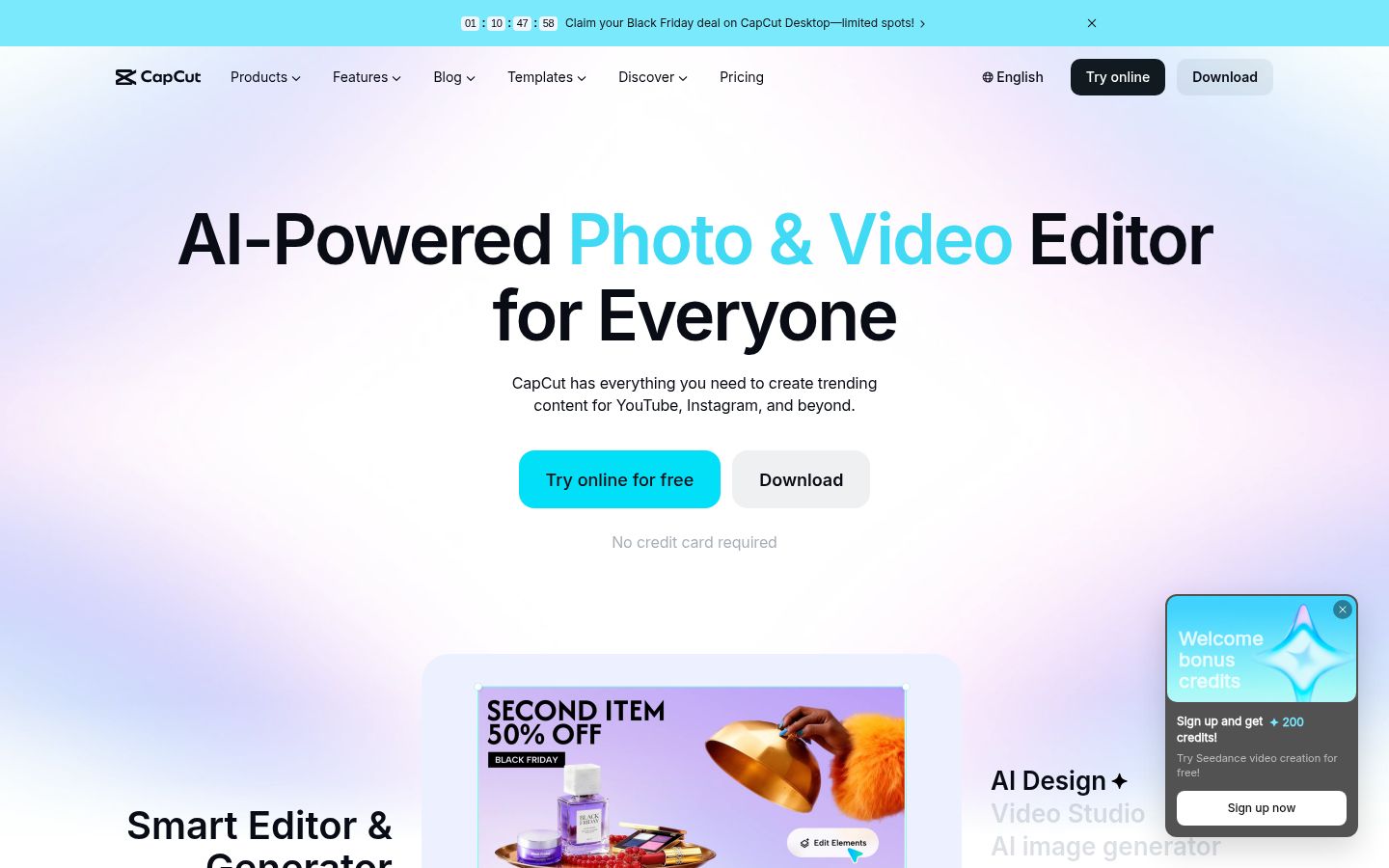
CapCut is a full video editor made by ByteDance. It has apps for phone and desktop and an online editor. The editor is a multi-track timeline with keyframes, chroma key, transitions, a large library of templates, effects and music, and a set of AI tools.
For captions, open your project, choose Auto captions, pick the spoken language and generate. Then you correct the words, check the timing and choose a style. CapCut also offers caption templates, word-by-word styles, bilingual subtitles, and export of captions as SRT or TXT. On the desktop app, CapCut can transcribe a clip and remove filler words and pauses from the transcript. Check your app version, because these features change.
CapCut suits people who want control over every frame, who edit for several platforms, and who want music, effects and templates in the same app. The main learning curve is the timeline. Most people spend their first sessions finding tools and learning where things sit.
Its limits: a free export gets a watermark when the project uses Pro-only templates, effects, music or AI clips, and 4K export needs Pro. Pro is $19.99 a month or $179.99 a year.
Editing: one pass or hands on
Sycamore makes the first cut for you. You upload the recording, pick a style, and Sycamore removes the dead air and filler, then adds the zooms and cutaways. Your job is to review the result and change what doesn't fit.
CapCut gives you the cuts to make. You can use its transcript tools to find pauses and filler words, then delete them, trim clips and add effects yourself. That takes longer, but every frame is in your hands. You also get the full timeline, so you can layer B-roll, screen recordings, music and graphics in ways Sycamore doesn't offer.
For a talking-head video with a clean recording, Sycamore gets you to a finished draft faster. For a video that mixes talking, screen recordings and music, CapCut's timeline is the better place to work.
Captions: both do word-by-word captions
Both tools make captions that follow the speech. The difference is what you do after the captions appear.
In Sycamore, captions come as part of the one-pass edit. They're animated word by word, and you can edit any word, restyle them and save a preset. Transcription is English only.
In CapCut, captions are a separate step on the timeline. You generate them, then correct and style them. CapCut supports more caption workflows: caption templates, bilingual subtitles, and SRT or TXT export. If you need a caption file for another platform or a second language, CapCut is the better fit. Sycamore doesn't export SRT or VTT files.
Sycamore's captions are one part of the edit. CapCut's captions are one tool among many.
Pricing: what each one costs
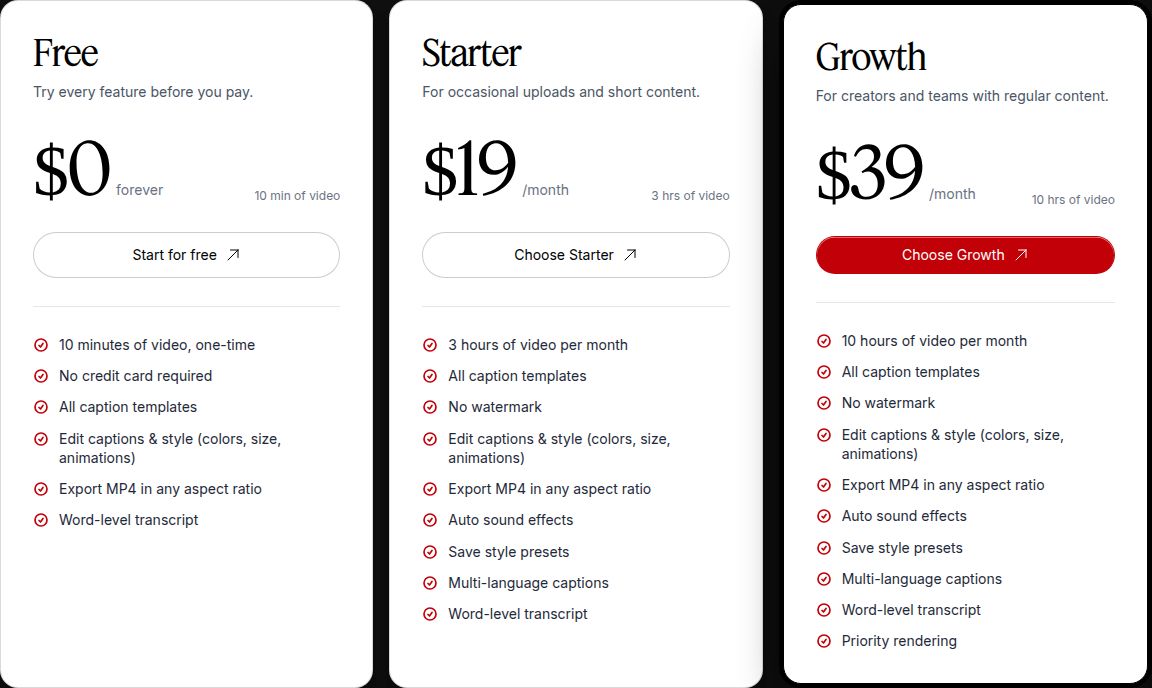
Sycamore has three plans:
- Free: 10 minutes of video, one time, no credit card. It includes every caption template and editing feature, so you can test the full edit on a real video.
- Starter: $19/month for 3 hours of video a month, no watermark.
- Growth: $39/month for 10 hours of video a month, no watermark, with priority rendering.
CapCut has a free plan, and its Pro plan is the main paid option. CapCut's own pricing page lists Free, Pro, Ultra and Teams. Pro is $19.99 a month or $179.99 a year, and it includes 1,200 monthly AI credits, 1 TB of storage, all premium templates and the premium Pro features. Ultra adds more AI generation for heavy users.
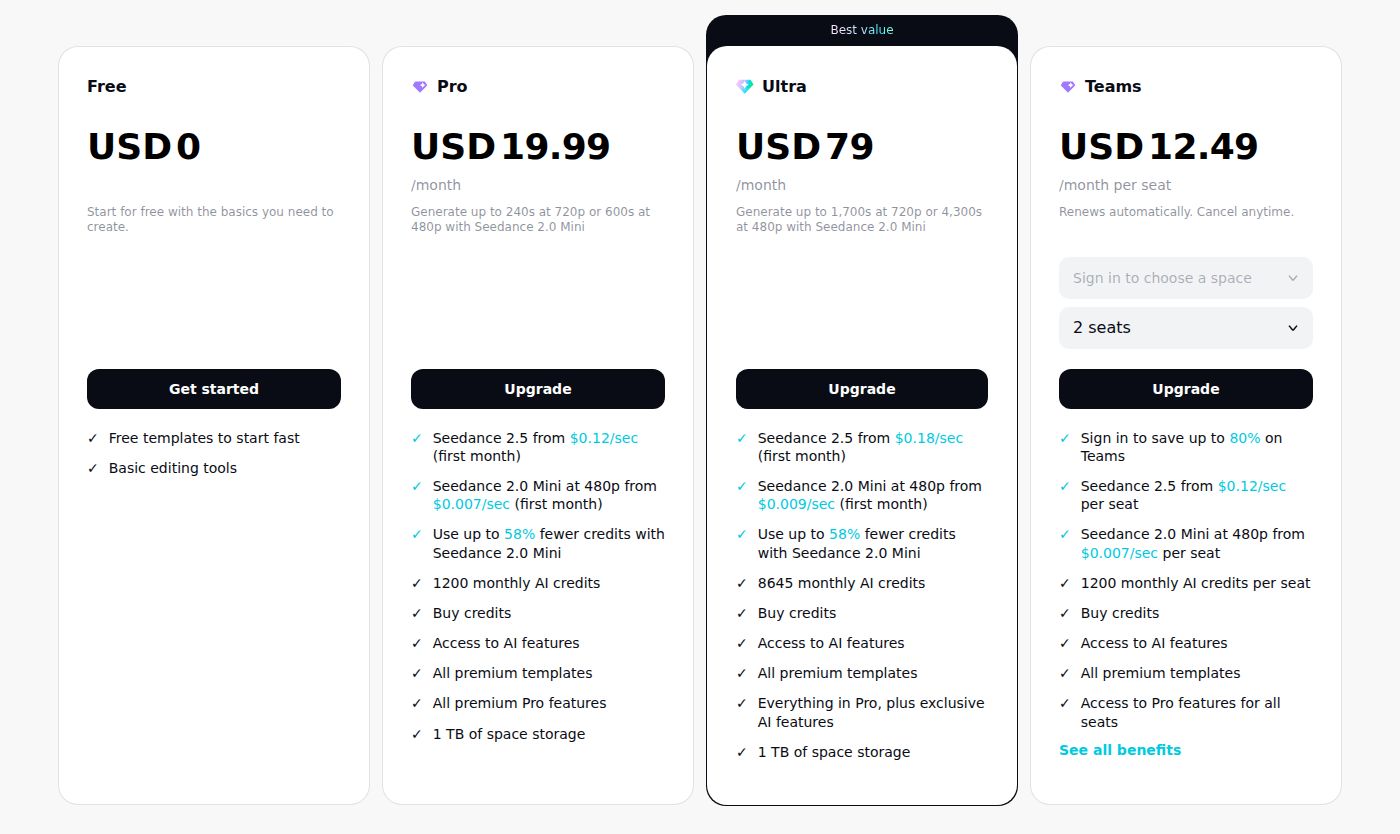 CapCut's Pro plan on its pricing page
The two prices work differently. Sycamore's paid plans are measured in hours of video, so you pay for the footage you process. CapCut's Pro is a flat monthly or yearly subscription. A creator who posts eight 3-minute videos a month uses 24 minutes of video, well inside Starter's 3 hours. Someone who edits every day, or who uses CapCut for much more than talking-head shorts, may get more from a flat plan.
If you already pay for CapCut Pro and it covers your work, Sycamore is an extra subscription. Use the Sycamore free plan to decide whether the one-pass edit saves you enough time to justify it.
Ease of use
Sycamore has very little to learn. You upload the file, pick an edit style, review the line types and export. The editor describes each line in words, so the choices are easy to read. The trade-off is that you give up fine control over the timeline.
CapCut takes more time at the start. The timeline has many panels and menus, and the auto captions setup has several steps. Once you know it, it's fast. Many creators already know CapCut from phone editing, which makes it the easier choice for them.
Sycamore runs in a browser on desktop and in a phone's browser. It's a web app, not a mobile app. CapCut has dedicated phone apps, so if you want to edit everything on your phone, CapCut is the better fit.
Output: formats, quality and watermarks
Sycamore exports MP4 in 9:16 for Shorts, Reels and TikTok, 1:1 for the feed, or 16:9 for YouTube. You can change the format at export without starting over. Starter and Growth exports have no watermark.
CapCut exports up to 1080p on the free plan. CapCut's export help says that 4K needs Pro. A free export gets a watermark when the project uses Pro-only assets, such as premium templates, effects, music or AI clips. Check the export screen before you post, so you know which assets you're using.
Which one should you pick
Pick Sycamore if
- You film yourself talking, post several times a month, and want the cuts and captions done in one pass.
- You want to review a finished edit rather than build one from scratch.
- Your videos are in English, and you don't need music, B-roll or sound effects.
- You'd rather pay $19 a month for a set amount of video than a flat tool subscription.
Start with the free plan. Upload one real video, let Magic Edit do the first pass, and see how much of it you keep. If you like the result, Starter's 3 hours of video a month is the plan to compare against your posting schedule.
Pick CapCut if
- You want to make every cut yourself, or you already know the CapCut timeline.
- You want music, sound effects, effects and templates in the same app.
- You need caption files (SRT or TXT) or captions in a second language.
- You edit on your phone and want a dedicated app.
- You'd like to start with a full editor at no cost, and pay for Pro only when a project needs it.
CapCut's free plan is a good place to start if you're not sure you'll pay for anything. Check the watermark rule before you export your first video.
Use both if
Some creators run the first pass in Sycamore, then open the finished MP4 in CapCut to add music, a cover or a B-roll clip. Both tools have free plans, so you can test that handoff on one video before you pay for either.
Skip both if
If your main job is to cut one long podcast or webinar into many short clips, neither tool is built for that. Look at our guide to the best CapCut alternatives, which covers tools built for clipping long videos. If you'd like to do the silence cuts yourself with no subscription, our guide to cutting silences from a video walks through the steps.
If you're ready to test Sycamore on your own footage, start at sycamore.to. For plan details, see Sycamore pricing.
FAQ
Is CapCut free to use?
Yes. CapCut has a free plan with a timeline editor and auto captions with limits. Its paid Pro plan is $19.99 a month or $179.99 a year as of October 2026.
Does Sycamore have a free plan?
Yes. The free plan includes 10 minutes of video, one time, with no credit card required. It includes every caption template and editing feature.
Does CapCut put a watermark on exports?
Free exports can carry a watermark when the project uses Pro-only templates, effects, music or AI clips. Check the export screen before you post.
Can Sycamore add background music or sound effects?
No. Sycamore doesn't add background music, sound effects, B-roll or AI voices. CapCut includes music and effects in its editor.
Does Sycamore work in languages other than English?
No. Sycamore's transcription is English only. CapCut offers auto captions with bilingual subtitles and translation options.
Is there a Sycamore mobile app?
No. Sycamore is a web app that works in a phone's browser. CapCut has dedicated phone apps.
Which is cheaper, Sycamore or CapCut?
CapCut's free plan costs nothing, and Pro is $19.99 a month. Sycamore's Starter plan is $19 a month for 3 hours of video, with a free plan of 10 minutes.