By the end of this post you'll have a finished short: a vertical video with the dead air and "um"s cut out, animated captions on every word, and the key lines pushed forward. Budget about half an hour for your first one. It gets quicker once you save a caption style you like. You can do the job three ways: a free editor where you make every cut yourself, Descript where you delete words from a transcript, or Sycamore, which makes the first pass for you and lets you review it. This post shows the steps for each and says who each one suits.
Start with a recording that's easy to cut
Good footage saves more time than any tool. Film in a quiet room, keep the mic close, and pause for a beat before and after each point. Those pauses are what the cutting tools look for, so a clean pause is easy to trim. A run-on take with mumbling at the end is harder for any tool to fix.
Frame for the platform you post on. Vertical 9:16 is the standard for TikTok, Reels and Shorts. Sycamore exports MP4 in 9:16, 1:1 and 16:9, so you can change the frame at export.
The edit order that works for talking-head video
Whatever tool you use, the order of work matters more than the buttons. Work through these five steps in this order:
- Cut the dead air and false starts first. Every cut moves the words after it, so cut before you style the captions.
- Remove filler words like "um", "uh" and "you know". Listen to each join. A cut that clips the next word sounds worse than the filler did.
- Add word-by-word captions, then read every line and fix any misheard word. Check names and product terms twice.
- Emphasize the two or three lines that carry your point, using a color, a bigger size or a full-screen card.
- Watch the whole edit at phone size with the sound on, then export.
Most of the time you'll spend is on steps 1 and 3. The tools below differ mainly in how much of those two steps they do for you.
Sycamore

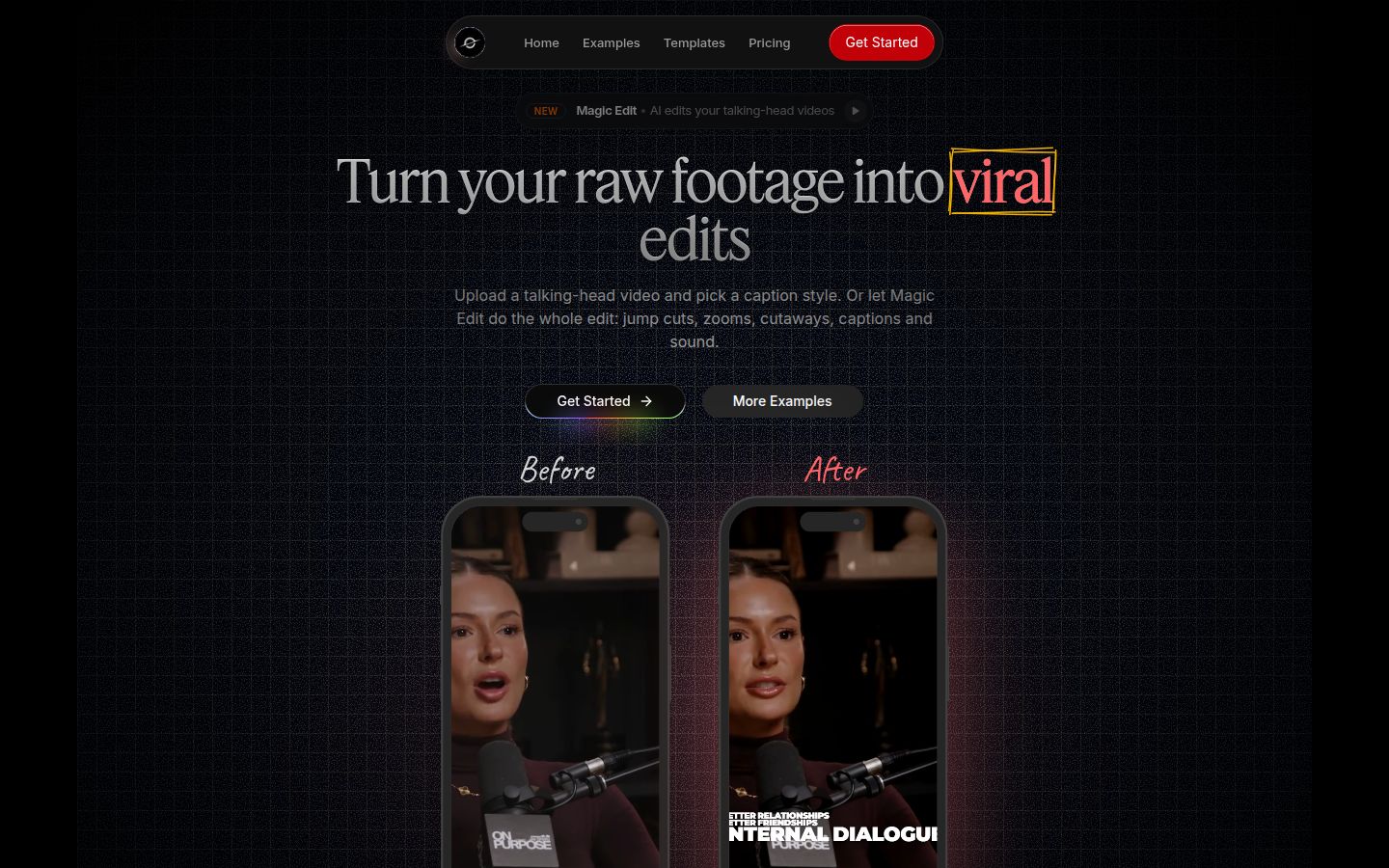
Sycamore is a web app that turns a raw talking-head recording into a captioned short. It runs in the browser, so there's nothing to install. Its Magic Edit mode is the one-pass option. You upload the raw video, and Sycamore cuts out silences and filler words, adds word-synced captions, and places zooms and full-screen text cutaways for the big lines. Then you review the edit before you export.
Here's the workflow, step by step:
- Sign up at sycamore.to. The free plan gives you 10 minutes of video, one time, with no credit card.
- Upload your file. Sycamore accepts MP4, MOV, WebM or MP3, up to 2 hours.
- Choose Magic Edit instead of a caption template.
- Pick an edit style. Apollo is a high-contrast edit with jump cuts and quote cutaways. Hermes is a lighter, springy edit with zooms.
- Review the edit. Each line can be set to Normal, Emphasis, Full screen, Number, List or Label. If Sycamore cut a line you need, restore it from the transcript.
- Export an MP4 in 9:16.
Plans as of October 2026, billed monthly, from the Sycamore pricing page:
- Free: 10 minutes of video, one time.
- Starter: $19 a month for 3 hours of video a month, no watermark.
- Growth: $39 a month for 10 hours of video a month, no watermark, with priority rendering.
Sycamore's limits that matter for this choice: transcription is English only, and there is no SRT or VTT caption file export. There's also no B-roll or stock footage library. If you need caption files or B-roll, pick one of the other tools below.
Sycamore suits a founder, coach or educator who posts one or a few talking-head shorts a week and wants the cutting done in one pass. You still review every cut. At 3 hours a month on Starter, a 2-minute short uses 2 minutes of that allowance, so you can make many shorts on it.
CapCut


CapCut is a full video editor with desktop, online and mobile versions. It's the best free option here if you want to edit by hand on a phone or a computer. It has auto captions, caption templates, and built-in tools for removing silence and filler words. The trade-off is that you make the calls on pacing and captions yourself.
The steps on CapCut Desktop:
- Import your clip into a new project.
- Generate auto captions from the Captions panel. CapCut's filler-word tool starts from these captions, so you need them first.
- Turn on the toggle beside Identify Filler Words, then click Generate. Once filler words are flagged, remove them, and check each join (CapCut's filler word guide).
- Remove the dead air with CapCut's remove-silence tool. A walkthrough of the built-in silence feature describes it as free on mobile and desktop.
- Style the captions, then export.
Two limits to check. First, the filler-word removal may sit behind CapCut Pro. A 2026 CapCut guide from Blitzcut says the feature is part of CapCut Pro, so check your version before you plan around it. Second, the cutting is manual review. That's the point for people who like control, and it's slower for a first video.
Descript


Descript edits video the way you edit a document. Its transcript is the timeline. Delete a word in the transcript and the matching video disappears. That's a strong fit for people who record long sessions and then pull the best parts out. Descript also has audio cleanup and an AI co-editor called Underlord.
For filler words, the steps are short. Open the AI Tools panel in the right sidebar and choose Remove filler words. A sidebar opens with every filler word Descript found, and you remove or keep each one. The Descript help page on filler words covers the details, and the words show as underlined in the script editor.
Plans as of October 2026, from Descript's pricing page and the plan details in a Layer3 Labs guide:
- Free: about 60 media minutes a month, 720p export with a Descript watermark.
- Hobbyist: $16 a month billed yearly, or $24 billed monthly. 10 media hours a month, 1080p export with no watermark.
The limits: the free plan's exports carry a watermark, and the plans are metered by media hours, so long recordings use up the allowance quickly. It's also a full editor with many panels, so expect to spend some time learning it.
Descript suits podcasters and anyone who repurposes long recordings into shorts. If you think in text and like to fix a video by fixing its script, it's a good match.
Submagic


Submagic is a caption-first tool that also trims. You upload a clip, generate captions, and then choose a caption style. G2 reviewers praise its one-click captions and the choice of caption styles, and mention that adding B-roll and audio is easy. For a creator who wants polished captions with little setup, that's the main draw. Our earlier review of Submagic goes deeper on the caption side.
The trimming tools sit in the editor. Submagic's trim page describes a Remove silence button and a Remove filler words button. Per StoryCut's October 2026 comparison of Submagic's plans, those silence and filler removals are on the Pro plan, not Starter.
Plans as of October 2026, from Submagic's pricing page and the plan table in the StoryCut comparison. Prices are per member:
- Starter: $19 a month, or $12 billed yearly. 15 videos a month, up to 2 minutes each. No silence or filler removal.
- Pro: $39 a month, or $23 billed yearly. 40 videos a month, up to 5 minutes each. Includes silence and filler removal, auto zoom and clean audio.
- Business: $69 a month, or $41 billed yearly. 100 videos a month, up to 30 minutes each.
The free option is a trial of 3 short videos with no card needed. Downloads without the watermark need a paid plan.
Submagic suits creators who care most about caption styles, B-roll and publishing, and who will pay for Pro to get the cuts. If your videos run longer than 2 minutes, the Starter cap will matter to you.
Which one to pick
| If you want | Pick | Price as of October 2026 |
|---|---|---|
| The cuts and captions done in one pass, and a free test first | Sycamore | Free (10 minutes), Starter $19/month |
| A free editor you control by hand, on phone or desktop | CapCut | Free to start. Check your version for Pro-only features |
| To edit long recordings by deleting words | Descript | Hobbyist $16/month billed yearly, $24 monthly |
| Caption styles and B-roll, with cuts included | Submagic | Pro $39/month, or $23 billed yearly |
If you're unsure, start with the free tier of the tool that matches your main job. Film one video, run it through, and time how long your review takes. That will tell you more than any comparison.
Common mistakes and how to fix them
Cutting every pause
A talking head with no breath between points looks rushed. Keep a short beat before a punchline or a key claim. Cut the long gaps and the stumbles, not every pause. Our guide on jump cuts covers when a visible cut helps and when it hurts.
Leaving misheard words in the captions
Auto captions get names, brands and jargon wrong. Read every caption against the audio before you export. A wrong word inside a big animated caption is hard to miss on a phone.
Covering your face with text
Captions that sit over your face or under the app's buttons hide the content. Place them in the middle or lower third of the frame, and check the preview at phone size.
Choosing a plan for the wrong length
Submagic's Starter plan caps each video at 2 minutes. Sycamore's Starter plan gives 3 hours of video a month. Check the length of your typical video against the cap before you pay for a month.
Exporting without a final look
Play the whole export once with sound. Auto edits can cut a word too early or leave a pause that is too long. A minute of checking catches both.
Recap
- Film with a clean mic, a quiet room and clear pauses.
- Cut dead air and false starts first.
- Remove filler words, and listen to each join.
- Generate word-by-word captions, then fix every wrong word.
- Emphasize the key lines with a color, size or full-screen card.
- Watch the full edit at phone size, then export in 9:16.
For a fuller walkthrough of the raw-footage side, read How to Edit Raw Talking-Head Footage Into a Short.
FAQ
Can I edit a talking-head video for free?
Yes. CapCut's core editor is free and includes auto captions and silence removal. Sycamore's free plan gives 10 minutes of video one time, and Descript's free plan gives about 60 media minutes a month with a watermark on exports.
How do I remove silences and filler words automatically?
In Sycamore, choose Magic Edit and it cuts silences and filler words in one pass. In Descript, open the AI Tools panel and choose Remove filler words. In CapCut, generate auto captions, then turn on Identify Filler Words.
Does Submagic remove silences on its cheapest plan?
No. Per StoryCut's October 2026 comparison of Submagic's plans, removing silences, bad takes and filler words is on Pro at $39 a month, not on Starter at $19 a month.
Does Sycamore support languages other than English?
No. Sycamore's transcription is English only, so use another tool for captions in other languages.
Which video format should I export for TikTok, Reels and Shorts?
Export 9:16 vertical video. Sycamore exports MP4 in 9:16, 1:1 and 16:9, so you can pick the frame at export.
How long does a talking-head edit take?
For a first video, plan on about half an hour. It gets faster once you save a caption style and get used to reviewing the edit.