Most talking-head shorts use one of five editing styles, or a mix of them. The five are clean cuts, word-by-word captions, punch-in zooms, emphasis and cutaways, and long-to-short clips. Each one does a different job and takes a different amount of time to produce.
If you film yourself talking and post to TikTok, Instagram Reels, YouTube Shorts or LinkedIn, start with the first two. Clean cuts and captions cover most of what makes a short easy to watch. Add the other styles when a specific line needs help or when you have time to review them.
This guide explains each style, shows which tools handle which style, and lists what each tool costs as of October 2026. We make Sycamore, so you'll see it as one option among five. Where another tool fits your work better, we say so.
The five editing styles and what each one does
1. Clean cuts, the base layer
Clean cuts remove the parts that don't help the viewer: pauses, "um"s, false starts and the first try at a line. You stay on camera the whole time with no visual tricks. The result sounds like one continuous thought.
Every other style sits on top of this one, so do it first. Watch your last video with the sound on and mark every pause that feels long to you. Those are your first cuts.
2. Word-by-word captions
Animated captions appear one word at a time, in sync with your voice. Viewers who watch with the sound off can follow along, and the moving text keeps the eye on the screen. Captions are the most visible style on short-form feeds.
Most tools can add captions. The real difference is how easily you can fix a wrong word, a name or a product term before you export. Check every caption line before you publish.
3. Punch-ins and zooms
A punch-in is a tighter crop of the same shot, cut in on a key line. A zoom eases the frame in or out over a few frames. Both make a single static shot feel like it's moving, without any new footage.
Used on every sentence, zooms make a video feel jumpy. Use them on the lines that carry your main point. Pick the three sentences that matter most and punch in only on those.
4. Emphasis and cutaways
Emphasis highlights a key word or phrase, usually with color or larger type. A cutaway is a full-screen text card, a number or a short list that covers your face for a second or two. Coaches and educators use cutaways to make a step or a price easy to remember.
Find the one number or list in your video and show it on screen for about two seconds. One clear cutaway is easier to follow than several effects spread across the video.
5. Long-to-short clips
This style takes one long recording, such as a webinar, a podcast or a live session, and cuts it into several short clips. Each clip needs its own opening line and its own clean edit. The main skill is picking the moments that make sense without the rest of the conversation.
Take the longest video you posted last month. Find three moments that stand alone without context. Those are your next three shorts.
Which style fits your footage and your time
The right starting point depends on how you film and how much you can review. Use this table to match your week.
| If your situation is... | Start with | Add next |
|---|---|---|
| You film short takes, one idea each | Clean cuts and captions | Punch-ins on key lines |
| You teach steps, tips or numbers | Clean cuts and captions | Cutaways for numbers and lists |
| You record one long session a week | Long-to-short clips | Captions on every clip |
| You post daily and can't review each edit | Clean cuts and captions | Emphasis, only if you review it |
The best style is the one you finish and check. An automatic edit saves time only if you still look at the result before it goes live. Budget a few minutes to review each video.
Try this: pick the row that matches your last week of posting, then do only the first two styles on your next video.
Sycamore

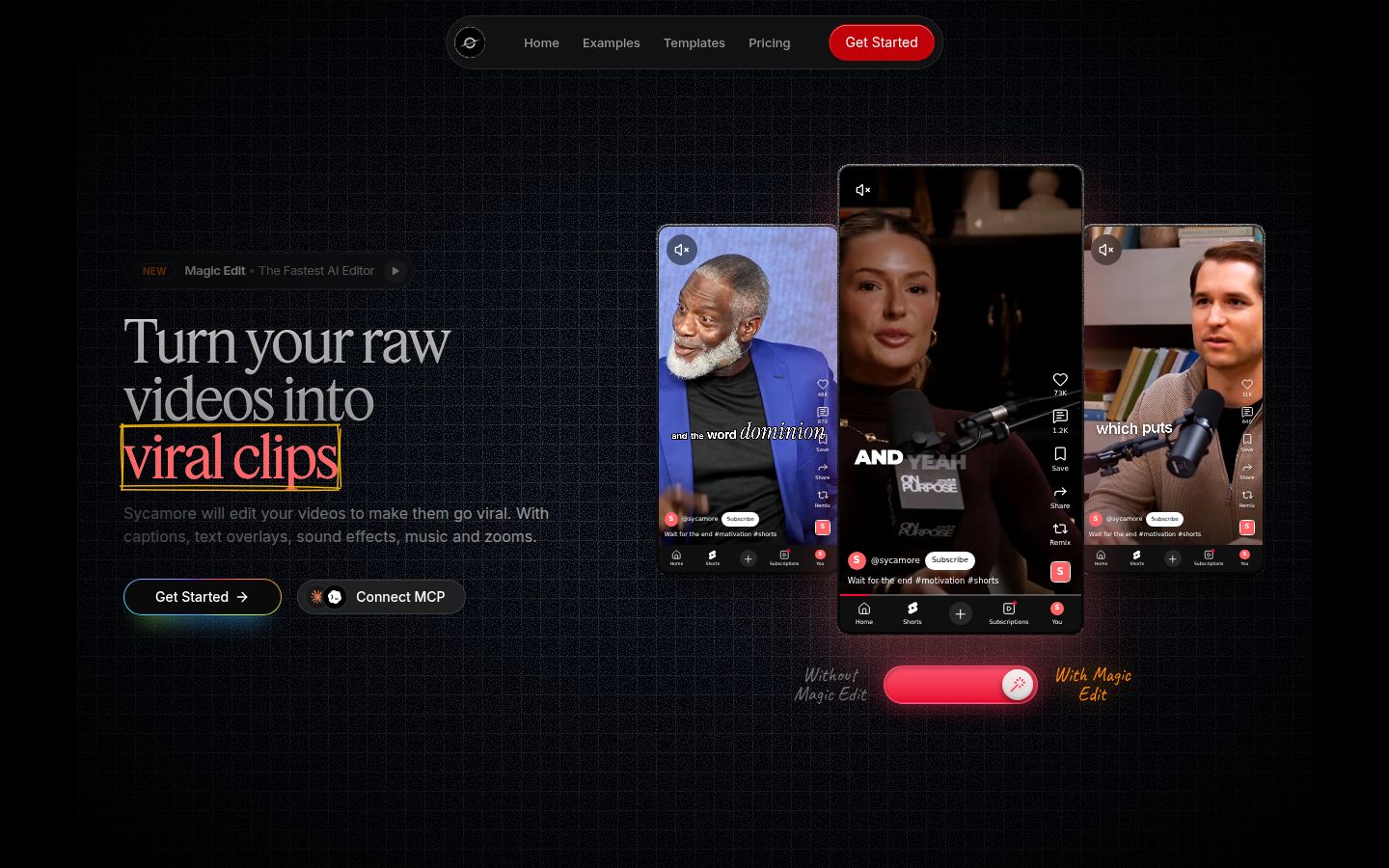
Sycamore is an AI video editor for talking-head videos. You upload raw footage of yourself talking, and Magic Edit makes the cuts. It removes silences, filler words and dead air. Then it adds zooms, emphasis on key lines, full-screen text for the big moments, numbers and lists on screen, and animated captions that appear word by word. It runs in your browser, so there's nothing to install.
You choose one of four edit styles (Apollo, Hermes, Athena or Helios) and review the result before you export. The editor works in plain words instead of a timeline. Each line can be set to Normal, Emphasis, Full screen, Number, List or Label. You can switch the edit style without starting over, and you can correct any caption word. Export an MP4 in 9:16, 1:1 or 16:9.
Sycamore suits founders, coaches, educators and creators who film themselves talking and want a finished short without learning a full editor.
Plans as of October 2026:
- Free: 10 minutes of video, one time, no credit card.
- Starter: $19 a month for 3 hours of video, no watermark.
- Growth: $39 a month for 10 hours of video, no watermark, priority rendering.
Uploads can be MP4, MOV, WebM or MP3, up to 2 hours.
Two limits matter for this choice. Transcription works in English only. And Sycamore edits the video you upload. It doesn't cut one long recording into a batch of shorts, and it doesn't write your script or your hook. For that job, OpusClip is the better fit.
Try this: upload one take on the free 10 minutes and compare the finished edit with the way you'd cut it yourself.
CapCut

CapCut is a free editor with desktop, online and mobile versions. It has a full timeline, so you move, trim and layer every clip yourself. It also has a large library of templates and effects. Many creators learn short-form editing in CapCut, and the mobile app lets you cut a video on your phone.
CapCut's pricing page lists a free plan and a Pro plan. Pro includes premium templates, 1,200 monthly AI credits and 1 TB of storage. Guides checked in October 2026 list Pro at US$19.99 a month or $179.99 a year. CapCut says prices vary by region, device and promotion, so check the Upgrade page for your account.
CapCut is the better choice if you want to control each cut on a timeline, or if you want a mobile editor. You build the cuts and captions yourself, and the AI features that automate them come with Pro and its credits.
Try this: take one video through CapCut's free plan from start to export and time the caption step. Use that number to decide how much hands-on work you can afford.
Descript

Descript is an AI video and audio editor built around the transcript. You edit the video by deleting or moving words in the text, and the video follows. It includes Remove Filler Words, Studio Sound for cleaner audio, Create Clips, and an AI co-editor called Underlord. It also covers translation and AI avatars.
Descript's Hobbyist plan is $16 per person a month billed yearly, or $24 billed monthly. It includes 10 media hours, 1080p export without a watermark and 400 AI credits a month. The Creator plan is $35 a month, with 30 media hours and 4K export. The free plan gives 60 media minutes a month, with 720p exports and a watermark.
Descript is the better fit for podcasts, interviews and long conversations that you cut by text. It has more settings than a short-form tool, so plan for a longer first session.
Try this: if your footage is mostly one person talking to a camera, skip the transcript-first workflow and test a short-form tool first.
Submagic

Submagic is a short-form editor built around captions. It adds animated captions and zooms to clips, and it also offers B-roll, sound effects, background music and publishing to social profiles. Its Pro plan adds silence, bad-take and filler-word removal, AI eye contact and custom fonts with a brand kit.
Submagic's Starter plan is $19 a month billed monthly, or $12 billed yearly. It covers 15 videos a month up to 2 minutes each, in 1080p. Pro is $39 a month, or $23 billed yearly, for 40 videos up to 5 minutes. Business is $69 a month, or $41 billed yearly, for 100 videos up to 30 minutes. Magic Clips, which turns long videos into clips, is a $19 a month add-on for 10 uploads. The free trial lets you edit 3 short videos, but downloads carry a watermark until you pay.
Submagic is a strong choice if you want captions plus a wider set of extras, or if you post to social profiles from the same tool. The silence removal you'd want for talking-head edits starts on Pro, not Starter.
Try this: check whether you need silence removal. If you do, price the Pro plan, not Starter.
OpusClip

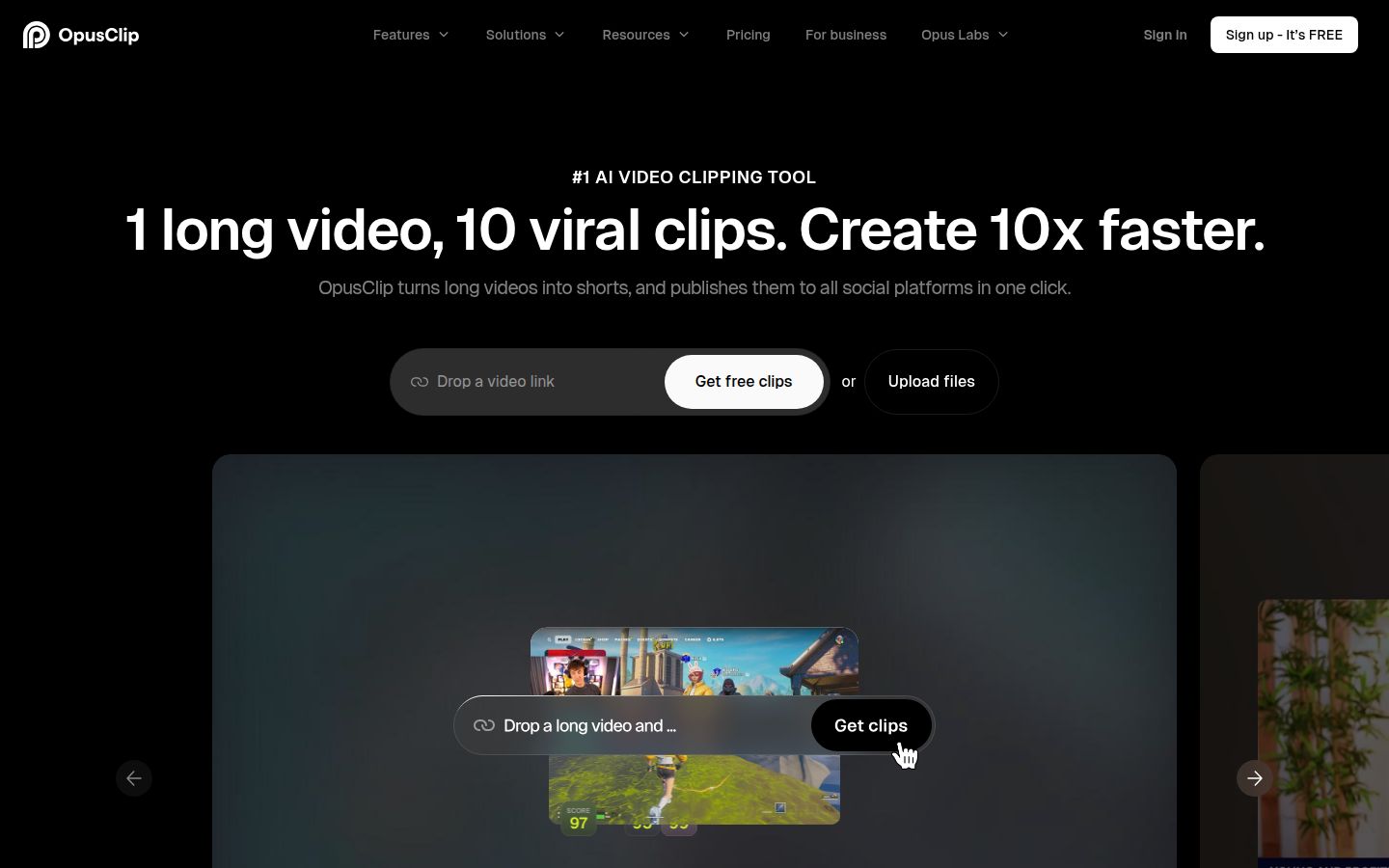
OpusClip starts from a long video and finds the moments that can stand alone as shorts. It then adds animated captions and reframes the clips for vertical feeds. Its Pro plan can import videos from links, including YouTube, Zoom and Riverside. The homepage says it supports English and more than 20 other languages.
The free plan gives 60 minutes a month, with watermarked exports. Starter is $15 a month and includes 150 minutes of source video. Pro is $29 a month and includes 300 minutes. Business is custom-priced. One credit covers one minute of source video.
OpusClip is the better pick when you have a long recording every week and want many clips from it. It is built for that job. If each video is one short take, you'll use less of what it does.
Try this: count the minutes of long footage you record in a month. That number tells you which plan to look at.
Build the base edit in five steps
This is the workflow for any tool. Start with clean cuts and captions, then add layers.
- Film one idea per take. Pause for a second before and after each line. Those pauses give the edit clean places to cut.
- Upload the take. Check the file type and length limit of your tool first. Sycamore accepts MP4, MOV, WebM or MP3 up to 2 hours.
- Remove dead air and filler words. In Sycamore, Magic Edit does this in the first pass. In CapCut, you cut by hand on the timeline. Our guides on how to cut silences from a video and how to remove filler words cover the manual steps.
- Check every caption. Fix names, product terms and numbers before you export. It's easy to skip, and viewers notice a wrong word right away.
- Add one or two layers. A punch-in on your main point and one cutaway for a number or list is enough for most shorts.
- Export in 9:16. Vertical video fits YouTube Shorts, Instagram Reels and TikTok.
Try this: run steps 1 to 4 on your next video before you add anything else.
What each tool costs in October 2026
Plans change often. Check each pricing page before you pay. These prices were current when we checked them in October 2026.
| Tool | Free option | Entry paid plan | What the entry plan covers |
|---|---|---|---|
| Sycamore | 10 minutes of video, one time, no card | Starter, $19 a month | 3 hours of video a month, no watermark |
| CapCut | Free plan with basic editing | Pro, US$19.99 a month or $179.99 a year in guides, prices vary by region | 1,200 monthly AI credits, premium templates, 1 TB storage |
| Descript | 60 media minutes a month, 720p with watermark | Hobbyist, $16 a month billed yearly or $24 monthly | 10 media hours, 1080p without watermark, 400 AI credits |
| Submagic | Trial of 3 short videos, downloads watermarked | Starter, $19 a month or $12 billed yearly | 15 videos a month, up to 2 minutes each |
| OpusClip | 60 minutes a month, watermarked | Starter, $15 a month | 150 minutes of source video a month |
Each tool measures usage in a different unit, so compare plans by how you work, not by the lowest number. Adobe Premiere Pro, for full manual control, has a single-app plan from $22.99 a month on an annual plan billed monthly.
Try this: write down your monthly video minutes and your review time, then find the plan that covers both.
How to choose the right tool
Pick the tool that matches the video you make most often.
- One raw take, one finished short, minimal review: Sycamore. Magic Edit does the cuts and captions in one pass, and you review the result before export.
- A free editor where you control every cut: CapCut. You get a timeline and a mobile app.
- Long conversations you cut by text: Descript. Editing the transcript is its main workflow.
- Captions plus silence removal, extras and social publishing: Submagic, on the Pro plan for silence removal.
- One long recording a week, split into clips: OpusClip.
- Full manual control in a professional editor: Premiere Pro.
If you're still unsure, take your most recent video and run it through the free plan of the top two tools on this list. Time how long each one takes you to get to a result you'd post. The one that gets you there with the least review time is the right pick for your work.
FAQ
What are the main short-form video editing styles?
The five common styles are clean cuts that remove pauses and filler, word-by-word animated captions, punch-in zooms on key lines, emphasis and full-screen cutaways for numbers and lists, and cutting one long recording into several short clips.
Is there a free way to add captions to a talking-head video?
Sycamore's free plan gives 10 minutes of video, one time, with no credit card, and includes its caption templates. CapCut has a free plan with basic editing, and Descript's free plan gives 60 media minutes a month with a watermark on exports.
Which tool is best for turning one long video into short clips?
OpusClip is built for finding standalone moments in long recordings and turning them into clips. Sycamore edits the video you upload and does not split a long recording into many shorts.
How much does Sycamore cost?
As of October 2026, Sycamore's Free plan is 10 minutes of video one time. Starter is $19 a month for 3 hours of video with no watermark, and Growth is $39 a month for 10 hours with priority rendering.
Does Sycamore work in languages other than English?
No. Transcription works in English only, so captions are generated from English speech.
Does Sycamore post my videos to TikTok or Instagram?
No. Sycamore exports an MP4 in 9:16, 1:1 or 16:9, and you post the file yourself.
Can I edit talking-head videos on my phone?
Sycamore runs in a phone's browser with nothing to install, but it is not a mobile app. CapCut has a mobile app for editing on a phone.