Retention editing is cutting a talking-head video so people keep watching it. You remove the pauses, filler words and dead air that give a viewer a reason to swipe away. Then you add visual change, zooms and captions so the screen keeps moving while you talk. The footage and the script stay the same. The edit decides how long people stay.
If you film yourself talking and post to TikTok, Instagram Reels, YouTube Shorts or LinkedIn, this is the skill that decides whether a good idea gets watched to the end. This guide covers the edits that matter, how to make them yourself, and which tools do the work for you. Prices are as of October 2026.
What retention editing changes in a talking-head video
Retention is the share of viewers who stay through a video. Each platform shows retention in the analytics for every post, including the second where people leave. Retention editing starts there. You cut the thing that caused the drop.
Take a 60-second clip that opens with a four-second pause, a "so, um," and a long setup before the point. The content is good. The first ten seconds are not. Retention editing moves the strongest line to the front, cuts the pause and the "um," and punches in on the key sentence so the clip feels tighter.
Look at your last video that underperformed. Find the second where the drop is steepest, then watch the five seconds before it. That is your first cut.
The five edits that do most of the work
-
Open on the payoff. The first few seconds decide whether someone stays. Start with your strongest line, not a greeting or a setup. Your script decides what that line is. The edit decides where it goes.
-
Cut dead air and filler words. Long pauses, breaths, "um," restarts and repeated takes all give a viewer a reason to leave. Cut them. Keep a pause when it gives a key point room to land.
-
Change the picture every few seconds. A locked shot that runs for a long time loses people. Use jump cuts, punch-ins (a closer crop on a key line), text on screen for a number or a list, or a cutaway that covers a messy cut.
-
Caption the words as you say them. Many people watch with the sound off or low. Word-by-word captions show the words as they're spoken, which is easier to follow than a block of text at the bottom.
-
Cut for meaning, not for every breath. Some editors keep natural pauses, because too many jump cuts can feel jarring. Cut where the idea gets weaker, and leave the rhythm alone when it helps the delivery.
Write these five on a card. Check your last video against each one, and fix the two that fail most.
How to edit a talking-head video for retention, step by step
Any editor can do this by hand. The steps are the same whether you use CapCut, Descript, Premiere or a tool that automates the work.
- Get a transcript. Most editors produce one from the audio. Read it once. Mark the lines that carry the point and the sentences that repeat.
- Cut repeats and restarts. Keep the best take of each line and delete the rest.
- Cut silences and filler words. Remove the gaps between lines. Keep breaths when they help the rhythm.
- Move the strongest line to the front. If the first five seconds are setup, cut the setup or move the payoff up.
- Add zooms on key lines. Use them on the lines that matter, not on every sentence. A zoom on every line makes the face jump.
- Cover jump cuts with cutaways. A text card, a screenshot or a B-roll clip over a cut hides the edit and keeps the frame moving.
- Add captions, check them, export. Fix any misheard names before you export. Export 9:16 for Shorts, Reels and TikTok.
- Post, then check the retention graph. Compare the drop point with the cut you made. Repeat on the next video.
Do steps 1 to 3 on one video this week. Post it, then check where people leave.
If you would rather not do steps 1 to 6 by hand, the tools below handle most of them.
Four tools that do the editing for you
These tools start from different places, and each one leaves some work to you. Here is each, with the limits that matter for the choice.
Sycamore

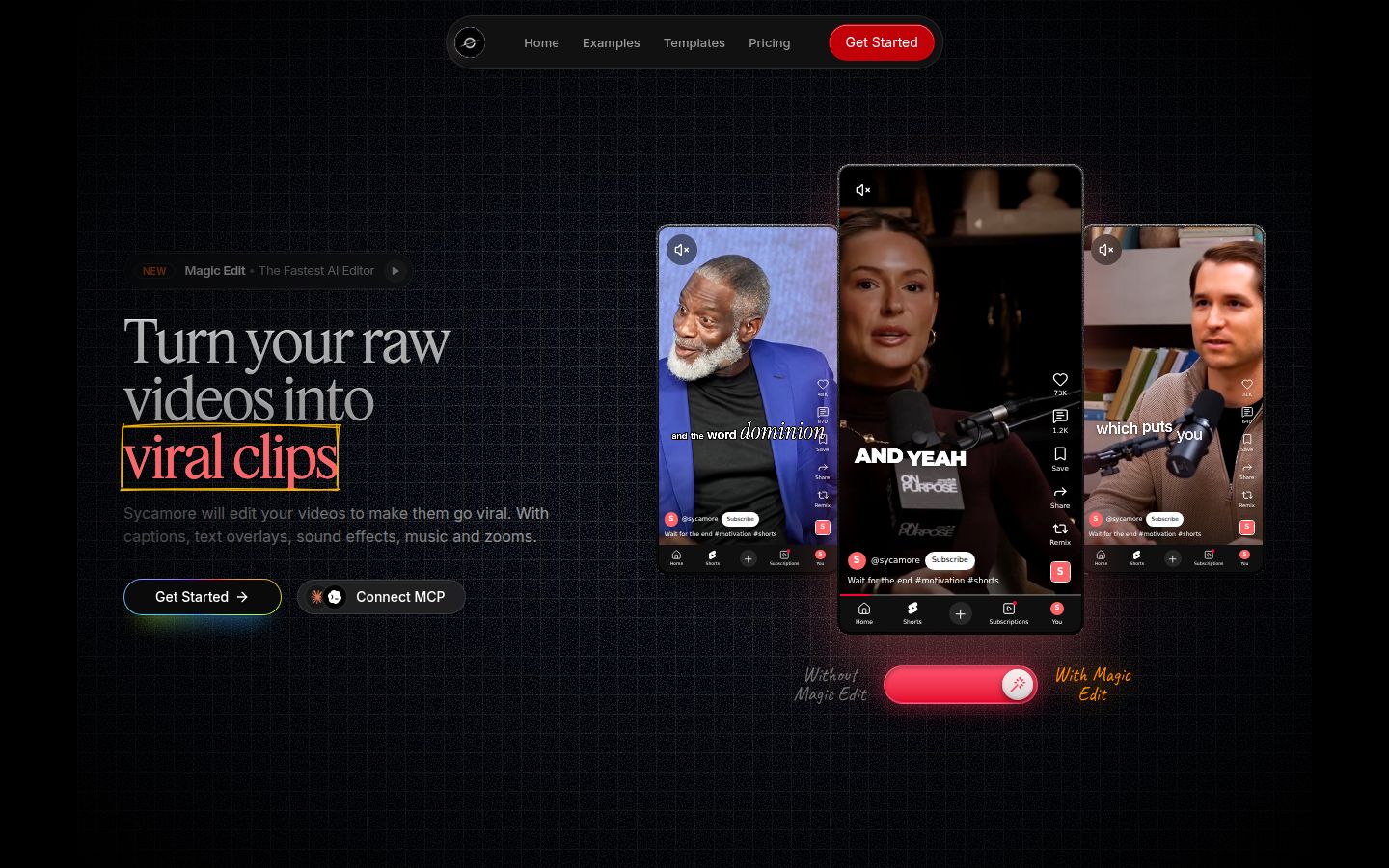
Sycamore is an AI video editor for talking-head videos. You upload raw footage of yourself talking, and Magic Edit makes the whole edit. It cuts silences, filler words and dead air. Then it adds zooms and punch-ins, emphasis on key lines, full-screen text cutaways for big moments, numbers and lists on screen, and animated captions that appear word by word. It runs in your browser, so there is nothing to install.
You pick one of four edit styles: Apollo, Hermes, Athena or Helios. Then you review the edit and change anything before you export. The editor works in plain words, not a timeline. Each line can be set to Normal, Emphasis, Full screen, Number, List or Label. You can switch the style without starting over, and export an MP4 in 9:16, 1:1 or 16:9.
Pricing as of October 2026:
- Free: 10 minutes of video, one time, no credit card.
- Starter: $19 a month for 3 hours of video, no watermark.
- Growth: $39 a month for 10 hours of video, no watermark, with priority rendering.
Sycamore suits you if you film yourself talking and want the finished edit in one pass, with the chance to review it before export. Its limits: transcription is English only. It edits the video you give it, so it doesn't write your script or your hook, and it doesn't split a long video into many clips. It has no B-roll library, AI avatars or AI voice, and it is a web app, not a mobile app. You can see the plans on the Sycamore pricing page.
Try it on the Free allowance: upload one clip, then compare the edit with your own cut.
Descript

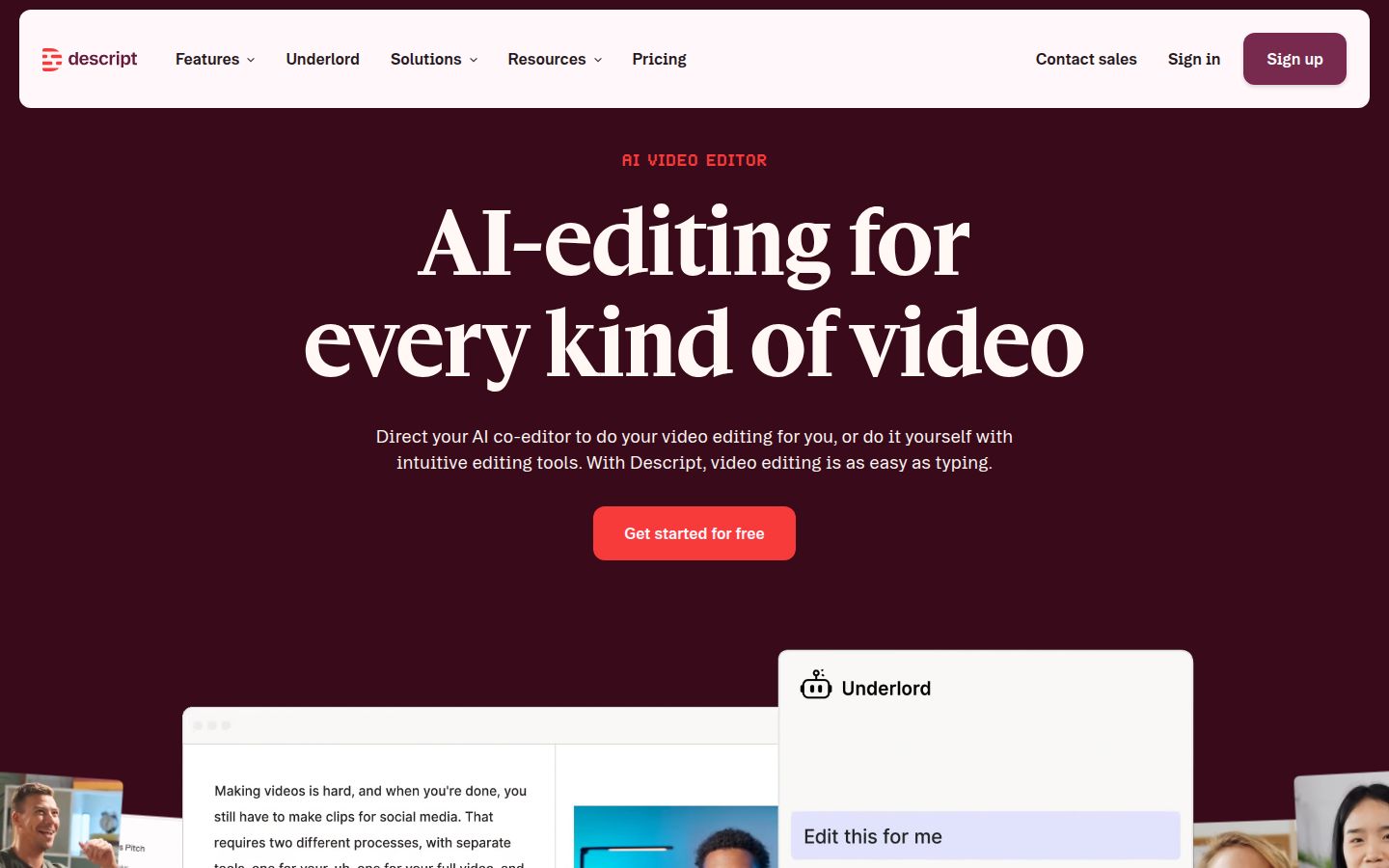
Descript is an AI video and audio editor where you edit the video by editing its transcript. Delete a word in the text and the matching footage goes with it. It has a Remove Filler Words feature, scenes with transitions, and zoom animations. It also covers podcasts, screen recording and audio cleanup. Its homepage leads with AI avatars and AI voices, which Sycamore doesn't offer.
The Free plan covers 60 media minutes a month and 100 AI credits one time, with 720p exports that carry a watermark. Paid plans start at $16 a month on annual billing ($24 month to month) on the Hobbyist plan. The Creator plan is $24 a month on annual billing ($35 month to month), with up to three seats and 4K export.
Descript suits you if you like working from text and you also make podcasts or longer videos. The limits to plan for: media hours count everything you upload, and AI features draw from a separate monthly credit pool, so you have two limits to watch. There is more to learn than in a single-purpose editor.
Try the filler-word removal on one three-minute clip on the Free plan. That tells you quickly whether text editing suits how you work.
CapCut


CapCut is a free video editor on desktop, online and mobile, with a large library of templates, effects and caption styles. You make the cuts yourself on the timeline. You find the silences, trim them, and add zooms and text. Many creators use it for exactly that, and the free version is enough to learn the basics. On CapCut's own plan comparison, the auto caption generator is listed with the Pro features.
CapCut Pro costs $19.99 a month or $179.99 a year in the US, as of October 2026. Prices can vary by region and by checkout, so check the price shown when you subscribe.
CapCut suits you if you want hands-on control, a free start, and a mobile app. Its limit for this job is time: the retention cuts are your work. Hand-cutting a long talking-head video can take far longer than a one-pass edit.
Open one of your clips and cut its first five silences by hand. Time it. That number is your baseline.
Submagic

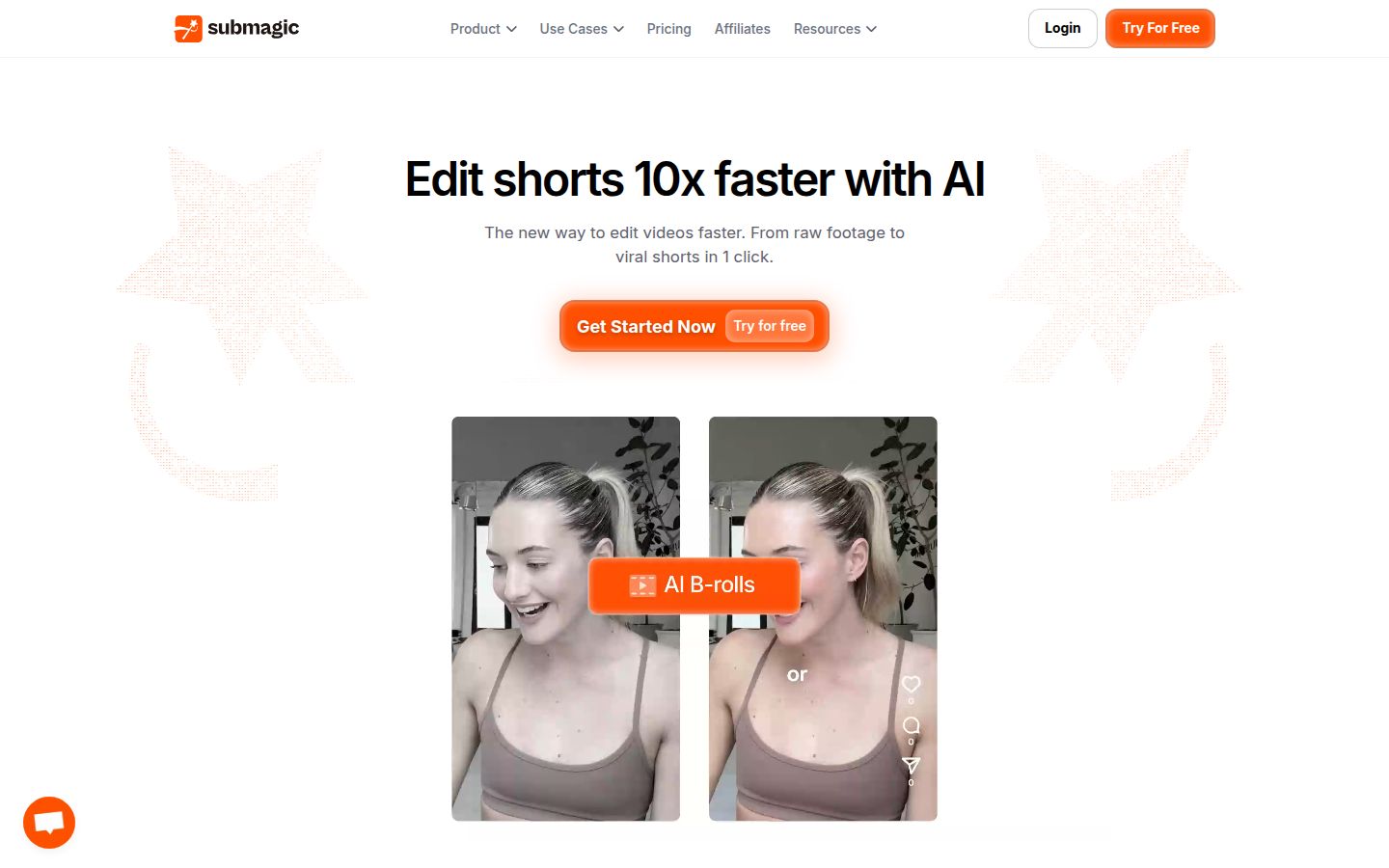
Submagic is an AI editor built around captions and short clips. Its Pro plan removes silences, bad takes and filler words, and adds auto zoom and AI eye contact. It also includes B-roll, sound effects, background music and a publishing feature. Those are areas where Sycamore doesn't compete.
Pricing as of October 2026:
- Starter: $19 a month, or $12 a month billed yearly. 15 videos a month, each up to 2 minutes.
- Pro: $39 a month, or $23 a month billed yearly. 40 videos a month, each up to 5 minutes.
- Business: $69 a month, or $41 a month billed yearly. 100 videos a month, each up to 30 minutes.
The free trial lets you edit three short videos without a card. Downloads without the watermark need a paid plan.
Submagic suits you if your clips are short, you want silence removal and auto zoom in one tool, and you want B-roll and publishing in the same place. Its limits: Starter caps each video at 2 minutes, and turning a long video into clips is a separate add-on at $19 a month for 10 uploads.
Run one 90-second clip through the trial. Compare its cuts with yours, and decide if the auto zoom matches how you edit.
Which tool fits your situation
| Tool | Starts from | Price, October 2026 | Best for | Main limit |
|---|---|---|---|---|
| Sycamore | Raw talking-head video | Free (10 minutes, one time); Starter $19/mo; Growth $39/mo | A finished talking-head edit in one pass | English-only transcription; no B-roll library or AI avatars |
| Descript | A text transcript | Free; paid from $16/mo billed yearly | Editing by text, plus podcasts and longer video | Two monthly limits (media hours and AI credits) |
| CapCut | A timeline | Free; Pro $19.99/mo or $179.99/yr | Hands-on control and a free start | You make the retention cuts yourself |
| Submagic | Captions and short clips | Starter $19/mo; Pro $39/mo (yearly billing is lower) | Silence removal, auto zoom, B-roll and publishing | Starter videos cap at 2 minutes |
Pick by the job in front of you:
- You film a talking-head video each week and want it finished: start with Sycamore. The Growth plan gives you 10 hours of video a month.
- You want to edit by reading the transcript, or you make podcasts too: Descript fits that workflow.
- You want to learn editing and keep every cut yourself: CapCut, and you can keep the free plan until you need more.
- You make short clips and want silence removal, auto zoom and B-roll in one place: Submagic Pro.
If your goal is cutting one long recording into many short clips, that is a different job. Opus Clip is built for it, and its Pro plan is $29 a month as of October 2026.
Start this week
Pick one video from the last month. Find the second where people left. Then make the cut that fixes it, using whichever tool you already have. Post the new version, and check the same graph. One well-placed cut teaches you more than ten changes made at random.
FAQ
Is retention editing the same as jump cutting?
No. Jump cuts are one tool. Retention editing is the goal, reached with cuts, zooms, captions, cutaways and by removing dead air.
Do I need a paid tool to do retention editing?
No. Any video editor can do it by hand. Paid tools save time on the steps that take longest, such as removing silences and filler words and adding captions.
How do I find the part of my video to cut?
Open the audience retention graph for the post in your platform's analytics and find the second where the line drops most. Watch the seconds just before it.
Should I remove every pause in a talking-head video?
No. Remove dead air and repeated takes, and keep the pauses that give a key point room to land. Too many jump cuts can make a video feel rushed.
Is Sycamore free to try?
Yes. The Free plan includes 10 minutes of video, one time, and needs no credit card. The Starter plan is $19 a month for 3 hours of video.
Does Sycamore support languages other than English?
No. Transcription is English only.
How much does Descript cost in 2026?
Descript has a free plan with 60 media minutes a month and 720p exports with a watermark. Paid plans start at $16 a month billed annually, or $24 a month billed monthly, on the Hobbyist plan.