If you film yourself talking to camera and post the clips on LinkedIn, the recording is the easy part. The slow part is the cutting: pauses, false starts, a hook at the top, and captions typed word by word. Several tools now do that work for you, and they go about it in different ways.
This post compares six of them, with Sycamore first. We make Sycamore, so read our section with that in mind. For the other five, we describe what each one does well and who it suits best, including the cases where it is the better pick.
How we chose these tools
We kept the list to tools that take a raw recording of a person talking and return something you can post. General design apps and avatar generators didn't make the cut, because they start from a different place.
For each tool we read its own pricing page and its help pages. We compared four things: the current price, whether there is a free plan or trial, which edits and captions the tool makes on its own, and which export sizes it supports. LinkedIn plays square, vertical and landscape video, so we checked for all three. Prices are as of November 2026. Plans change, so check the pricing page before you pay.
The short version: comparison table
| Tool | Starting price (monthly billing) | Free plan or trial | Best for |
|---|---|---|---|
| Sycamore | $19/month (Starter, 3 hours of video) | Free: 10 minutes of video, one time, no card | One raw talking-head video, finished in one pass |
| CapCut | Pro: $19.99/month (US App Store listing) | Free plan, no time limit | Doing the edit yourself, on a phone or desktop, at no cost |
| Descript | Hobbyist: $24/month, or $16/month billed yearly | Free plan with 60 minutes of media | Editing by transcript, and longer recordings |
| Adobe Premiere Pro | $34.99/month, or $22.99/month on the annual plan billed monthly | Free trial | Full control of the timeline and work already in Creative Cloud |
| Submagic | Starter: $19/member/month | Free trial: 3 short videos | Captions and clips on a credit balance |
| OpusClip | Starter: $15/month (150 credits) | Free plan: 60 credits a month | Many short clips from one long video |
Sycamore

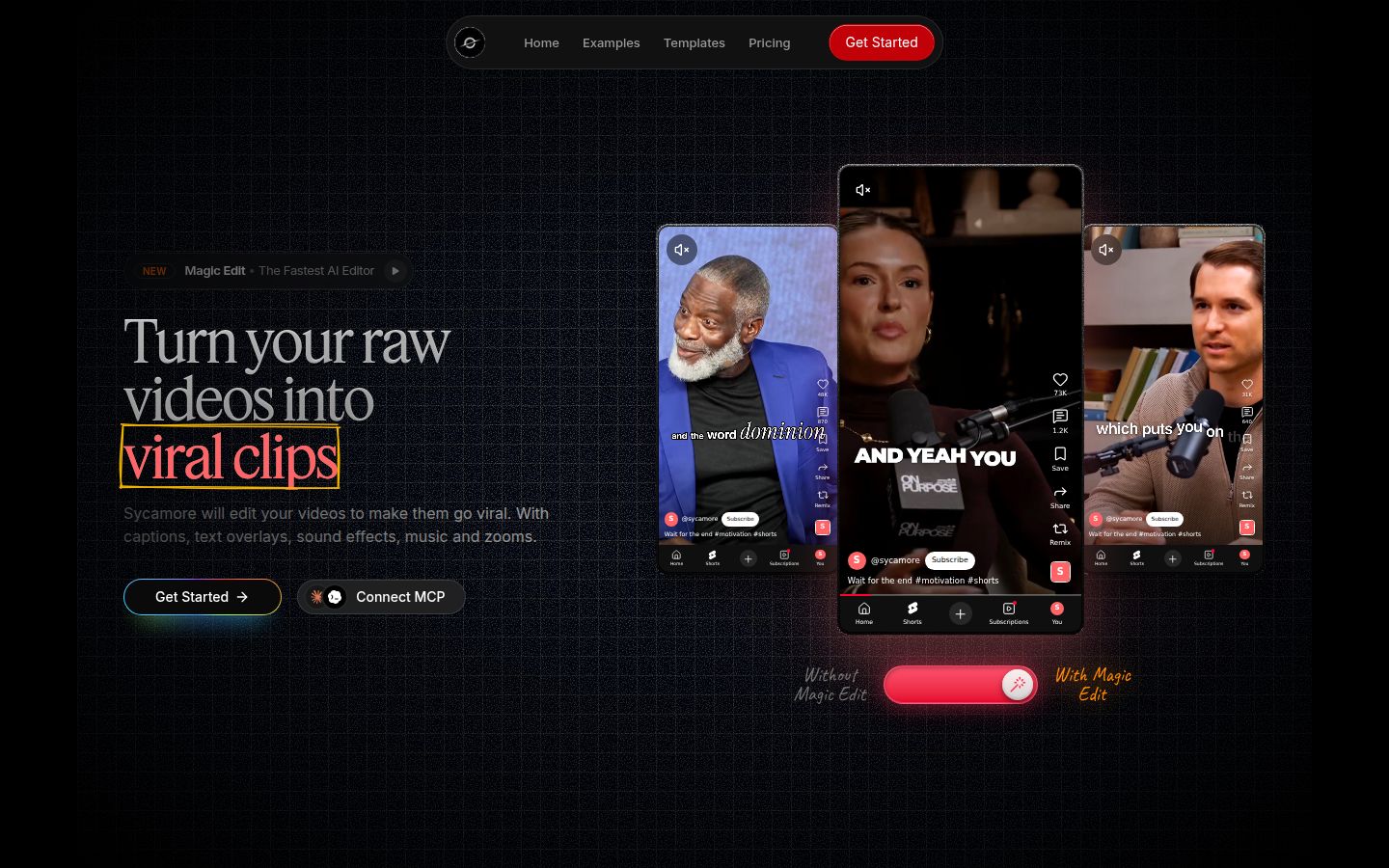
Sycamore is an AI video editor for talking-head videos. You upload raw footage of yourself talking, and it returns an edit made to keep people watching. Silences and filler words are cut, the key lines get zooms and emphasis, big points get full-screen text, and the captions appear word by word. It runs in your browser, so there is nothing to install.
The feature that does most of the work is Magic Edit. You upload a video and pick one of four edit styles: Apollo, Hermes, Athena or Helios. Sycamore builds the edit, then you review it and change anything before you export. You don't have to start over to try a different style.
The editor works in plain words, not on a timeline. Each line of your video can be set to Normal, Emphasis, Full screen, Number, List or Label. If a line needs a different treatment, you change that one line.
Captions come with the edit. They are animated and timed word by word. You can correct any word, change fonts, colors, size, animation and position, and save a look as a preset for the next video.
You export an MP4 in 9:16, 1:1 or 16:9. The square format fits the LinkedIn feed, and the vertical format fits the same clip on Reels and Shorts. You make one edit and export each size from it.
The limits that matter for LinkedIn are two. Transcription is English only. And Sycamore doesn't post or schedule for you: you download the MP4 and upload it to LinkedIn yourself. It also doesn't write your hook or your script, so it works with what you filmed.
Pricing as of November 2026: The Free plan gives you 10 minutes of video, one time, with no credit card. Starter is $19/month for 3 hours of video a month, with no watermark. Growth is $39/month for 10 hours a month, with no watermark and priority rendering. You can upload MP4, MOV, WebM or MP3 files up to 2 hours long. You can see the full plan list on the Sycamore pricing page.
Who it's best for: Founders, coaches and educators who film one or a few talking-head videos a week and want them edited without opening a timeline.
CapCut

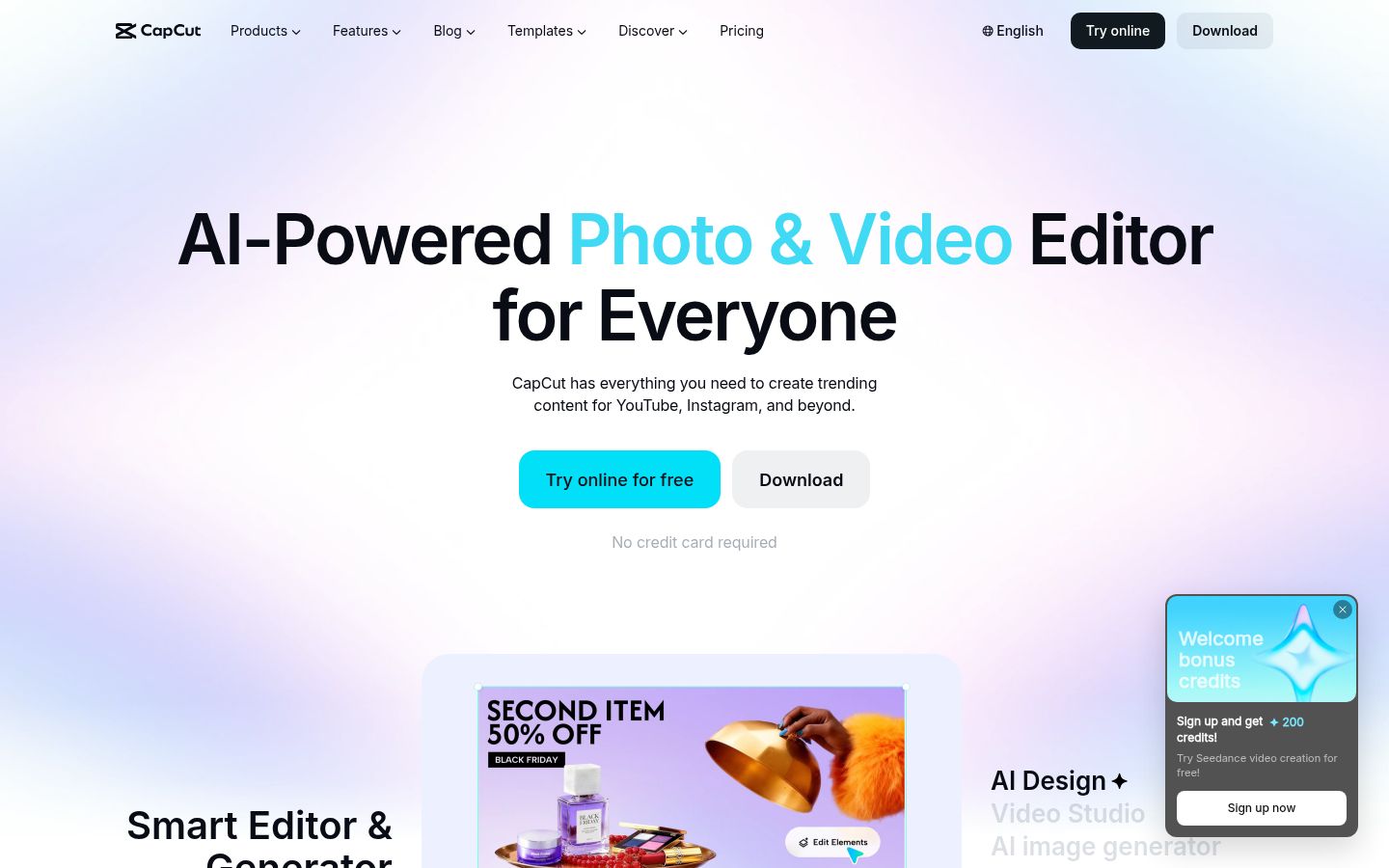
CapCut is a video editor with a free plan, a full timeline, and apps for phone, desktop and the web. It has auto captions, caption templates, and a large library of effects and templates, which is why many creators start with it for vertical video.
Its strength is control. You cut each gap yourself, place each zoom, and build the captions and text you want. For a talking-head video that means more steps than an automatic edit, but it also means you decide every cut. The free plan covers a lot: a video built only from free assets in the standard editor can export without a watermark, and it handles 1080p social clips well.
The limits are about what the free plan includes. Most templates add a CapCut ending clip that you can delete before export. Pro-marked effects or templates lock the export or add a watermark until you subscribe or remove them. On desktop, 4K and 60 fps exports are Pro features. Some features that started free, such as Auto Reframe, moved to Pro in April 2026.
Pricing as of November 2026: The free plan costs nothing. In the US, the App Store listings show Standard at $9.99/month and Pro at $19.99/month. Prices differ by region, platform and billing, so check the live checkout before you pay.
Who it's best for: People who want to do the edit themselves, on a phone, at no monthly cost, and who like working on a timeline.
Descript

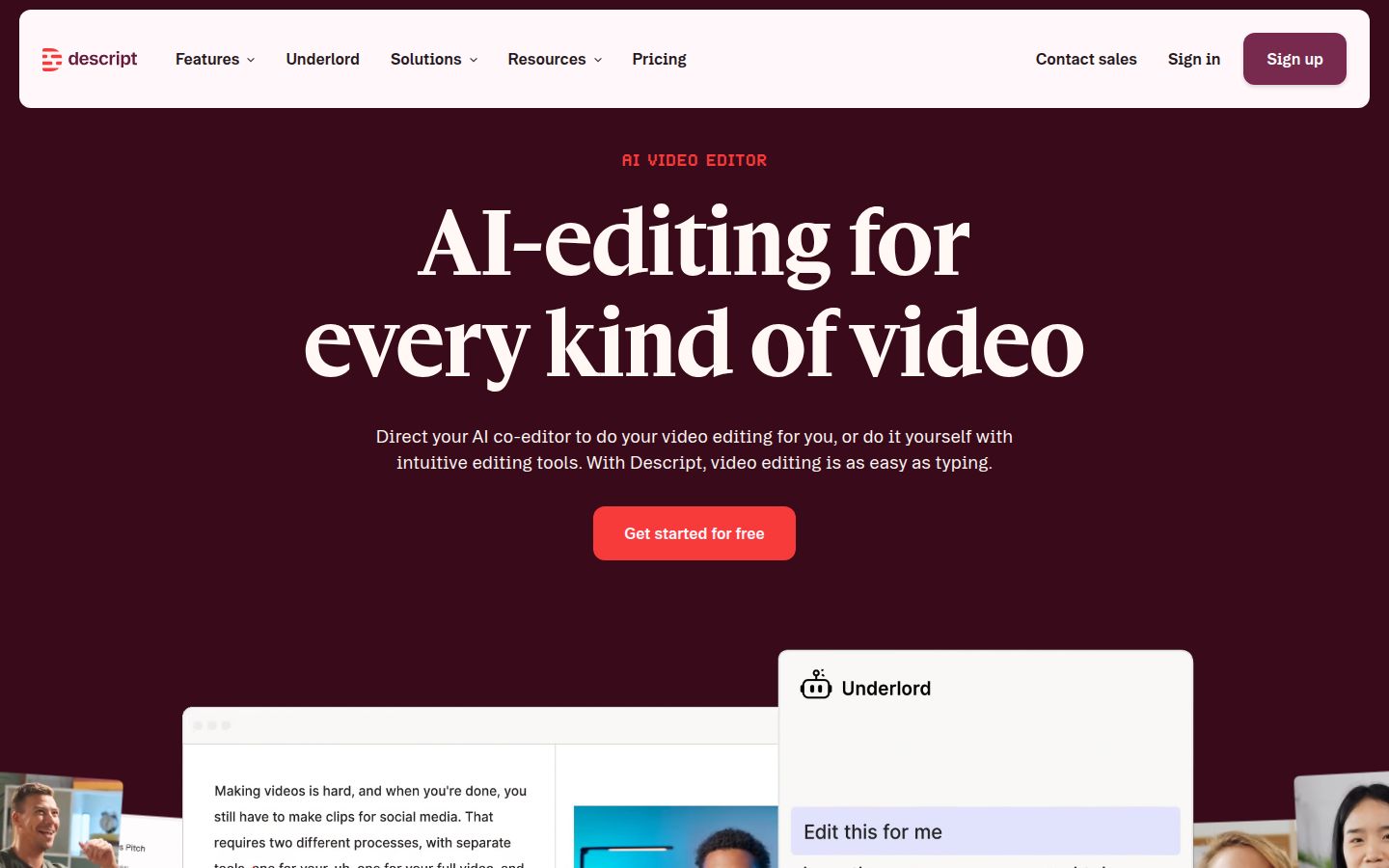
Descript is an AI video and audio editor built around a transcript. You edit the video by editing its text. Delete a sentence from the transcript and the matching clip is cut from the video. It also has tools for removing filler words, cleaning up audio with Studio Sound, and creating clips from longer recordings.
That transcript approach is its standout. If you think in sentences rather than frames, it can feel natural, and it works well for podcast-style recordings and longer talks as well as short clips. Descript also includes an AI assistant, Underlord, that can do editing tasks on request.
The limits are about how the plans meter your work. Every paid plan has a monthly pool of media hours and a monthly pool of AI credits, and you need both. Media hours count everything you upload, including footage you later cut. The pricing page doesn't list how many credits each AI action uses, so you will see that as you work. Watermark-free export starts with Hobbyist, and 4K export starts with Creator.
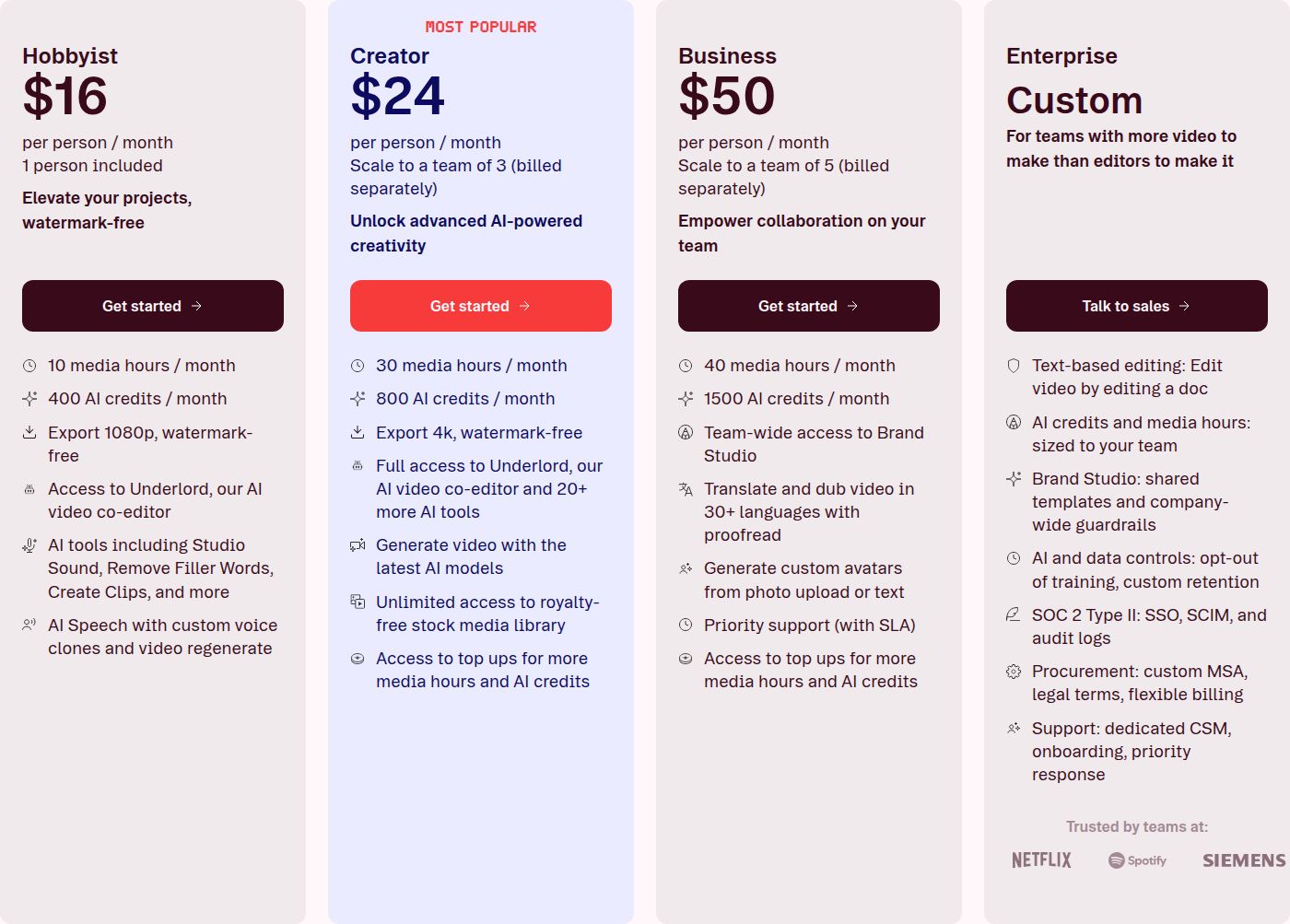 Descript's pricing plans, with the Hobbyist and Creator plans
Pricing as of November 2026: The Free plan includes 60 minutes of media, with 720p exports that carry a watermark. Hobbyist is $16/month billed yearly, or $24/month billed monthly, with 10 media hours, 400 AI credits and 1080p exports with no watermark. Creator is $24/month billed yearly, or $35/month billed monthly, with 30 media hours, 800 AI credits, 4K and up to 3 seats. Business is $50/month billed yearly, or $65/month billed monthly.
Who it's best for: Podcasters, interview-based creators and anyone with long recordings to cut down. If you mostly film short clips, the media-hours meter is worth checking before you pick a plan.
Adobe Premiere Pro

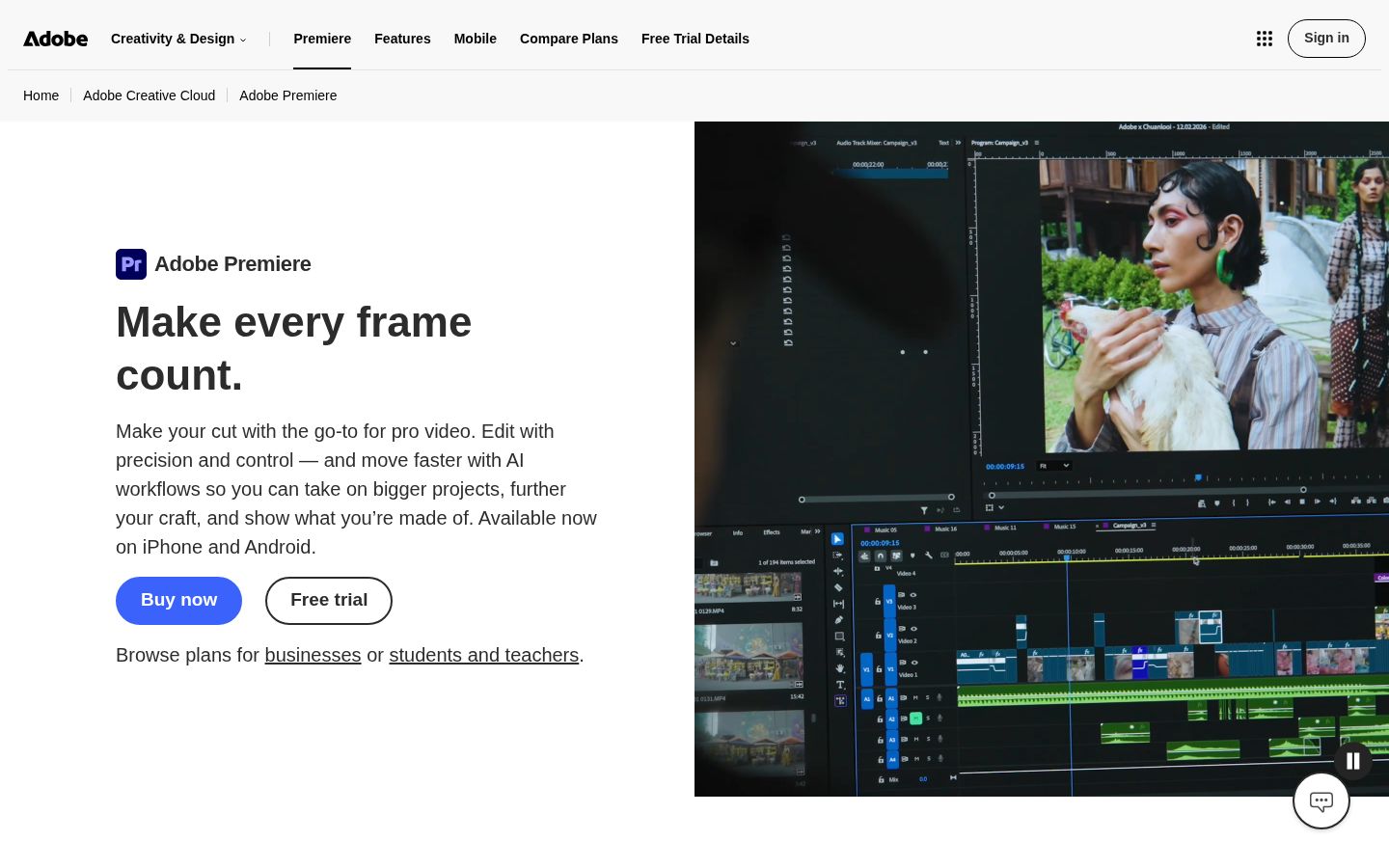
Premiere Pro is Adobe's professional video editor. It has a full timeline, fine control over every cut and every audio track, and color and effects tools. It is the standard choice for people who edit long-form video, and it sits inside Adobe's Creative Cloud alongside Photoshop, Illustrator and other apps.
Its strength is control. You can build exactly the edit you want, and it handles long videos, multi-camera work and high-end color. For a talking-head clip, you build the zooms, captions and cutaways yourself, which takes longer than an automatic edit but leaves nothing to chance.
The limit is the learning curve and the cost of the plan. It is a full editor, so there are many panels and settings to learn before a short clip goes out. The price depends on whether you buy Premiere alone or as part of a wider Creative Cloud plan.
Pricing as of November 2026: Adobe lists Premiere at $22.99/month on the annual plan billed monthly. A month-to-month plan costs $34.99/month. Adobe offers a free trial.
Who it's best for: People who already work in Creative Cloud, who want full control over every frame, or who cut long videos and short clips from the same project.
Submagic

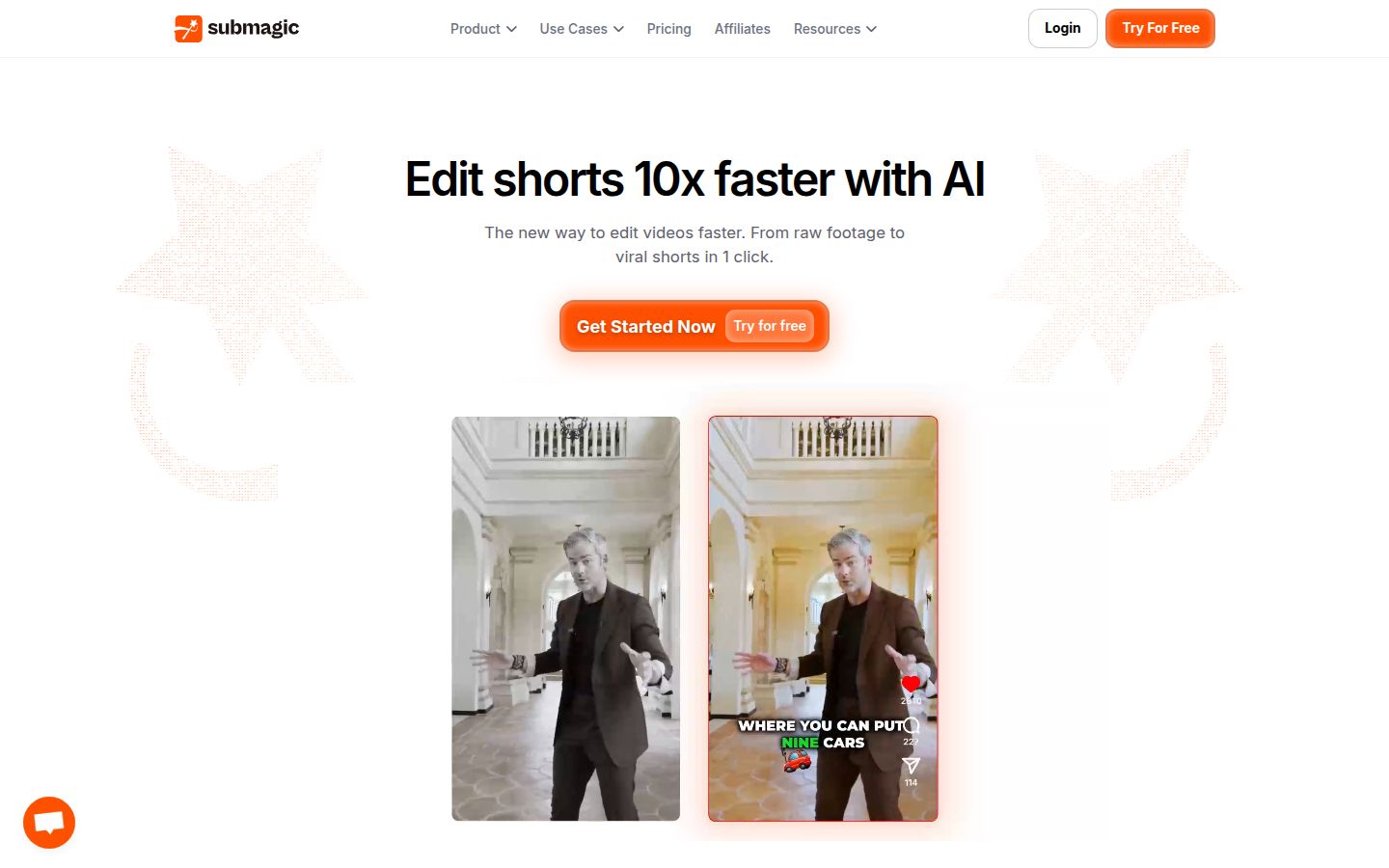
Submagic is a short-form video editor built around captions and clips. You upload a video, choose a caption style, and Submagic adds captions with animated highlights. It also offers auto zoom, b-roll, and Magic Clips, which find short clips inside a longer video. Submagic has a page aimed at LinkedIn video makers.
Its strength is captions. If your videos are already cut the way you want, Submagic adds captions quickly and gives you a range of styles. AI captions cost no credits, which means the caption step itself doesn't draw from your balance.
The limit is the credit system. Every plan runs on a monthly balance. Uploading a video costs 3 credits, and each Magic Clip costs 8 credits. On Pro, 120 credits covers around 40 uploads with captions, or fewer if you use more AI features on each one. The free trial lets you upload 3 short videos.
Pricing as of November 2026: Starter is $19/member/month, with 45 credits a month. Pro is $39/member/month, with 120 credits. Business is $69/member/month, with 300 credits. Annual billing is $144, $276 and $492 per member per year, which Submagic says saves up to 41%.
Who it's best for: Creators who already have a finished cut and want captions and clips fast, and who are comfortable tracking a credit balance.
OpusClip

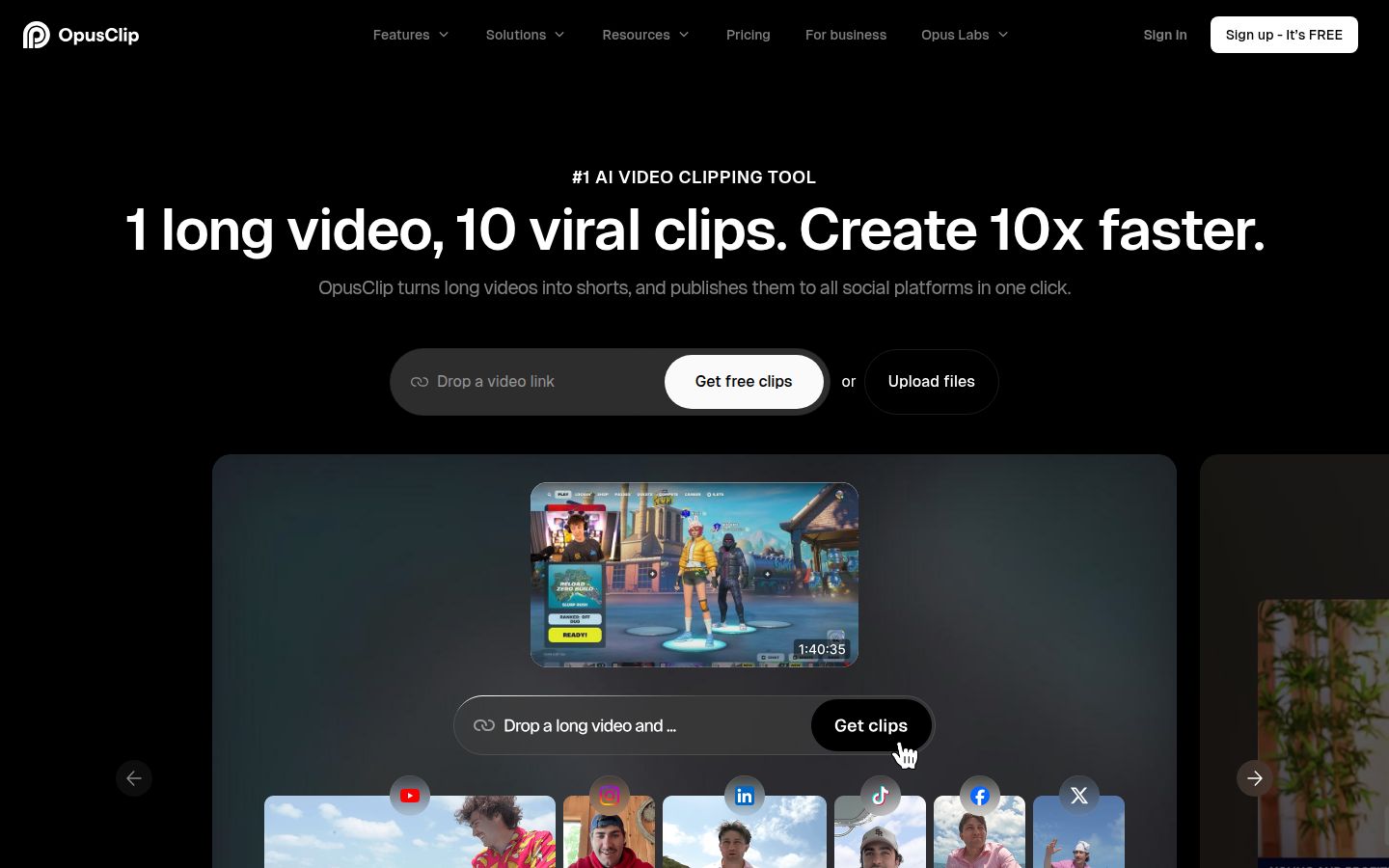
OpusClip turns one long video into several short clips. It looks through a recording, picks moments it expects to work as shorts, cuts them, adds animated captions and reframes each clip for vertical, square or landscape. It is a clipping tool first, so its main job is finding the short moments in a long recording.
Its strengths are range and import options. On the Pro plan, you can import from links on YouTube, LinkedIn, Zoom, Riverside and other sources, not only from a file on your computer. Its homepage says it supports videos in English and more than 20 other languages. Its features page also lists a social scheduler.
The limit is the job it's built for. A single three-minute talking-head video is a different task from a two-hour webinar, and OpusClip is at its best with the long recording. Its credits meter how much you process: 60 a month on Free, 150 on Starter and 300 on Pro.
Pricing as of November 2026: The Free plan is $0 with 60 credits a month. Starter is $15/month with 150 credits. Pro is $29/month with 300 credits. Business is quoted on request.
Who it's best for: People with a long recording, such as a webinar, podcast or talk, who want a set of short clips from it.
Which one should you pick?
Start with what you have. The tool that fits depends on whether you have one video to finish, a long recording to cut down, or a pile of clips that need captions.
- You have one raw talking-head video and want it finished with little work. Pick Sycamore. Use the free 10 minutes first to see the edit on your own footage. The Sycamore pricing page lists the plans.
- You want a free editor and you like doing the edit yourself, on a phone or a computer. Pick CapCut. Its free plan covers most short social edits.
- You edit by transcript, or you work from long interviews and podcasts. Pick Descript. Check the media-hours and AI-credit meters before you pick a plan.
- You already use Creative Cloud, or you want full control over long-form work. Pick Adobe Premiere Pro.
- You have clips ready and want captions and clip-finding on a credit balance. Pick Submagic.
- You have one long recording and want many short clips from it. Pick OpusClip.
Two more things help with the decision. First, LinkedIn viewers often scroll with the sound off, so the captions do a lot of the work in the first seconds. Every tool here adds captions, so compare the styles and the way you can edit a word, not just whether captions exist. Second, if you post every week, batch your work. Our guide on how to batch edit a week of short-form videos walks through a routine that fits one afternoon.
If you're not sure, try the free plan of the tool that matches your situation first. Film one real video, run it through, and export it at the size LinkedIn will show. That test will tell you more than any comparison table.
FAQ
What is the best video editor for LinkedIn talking-head videos?
It depends on what you have. For one raw talking-head video you want finished with little work, Sycamore is built for that job. For a free editor you control by hand, CapCut is a good pick, and for editing by transcript, Descript fits well.
Is there a free video editor for LinkedIn videos?
CapCut has a free plan that covers most short 1080p social edits. Descript's free plan includes 60 minutes of media with watermarked 720p exports. Sycamore's free plan gives you 10 minutes of video, one time, with no credit card.
Can these tools post my video directly to LinkedIn?
Sycamore exports an MP4 and does not post or schedule it, so you upload the file to LinkedIn yourself. OpusClip lists a social scheduler on its features page, so check its current platform list before you rely on it for LinkedIn.
Do I need captions on LinkedIn videos?
Captions help a lot because many viewers scroll with the sound off. All six tools in this post add captions to a video.
Which of these tools work in languages other than English?
Sycamore transcribes English only. OpusClip's homepage says it supports English and more than 20 other languages. Check each tool's help pages for the languages it supports before you record in another language.
Is Sycamore cheaper than CapCut Pro?
Sycamore Starter is $19/month for 3 hours of video, and the CapCut Pro listing in the US App Store is $19.99/month. The two are priced differently: CapCut Pro is an editor subscription, while Sycamore's plans are metered by hours of video.